OpusClip ClipAnything tutorial: find and finish three vertical highlights from low-dialogue event footage.
What this OpusClip ClipAnything tutorial will deliver
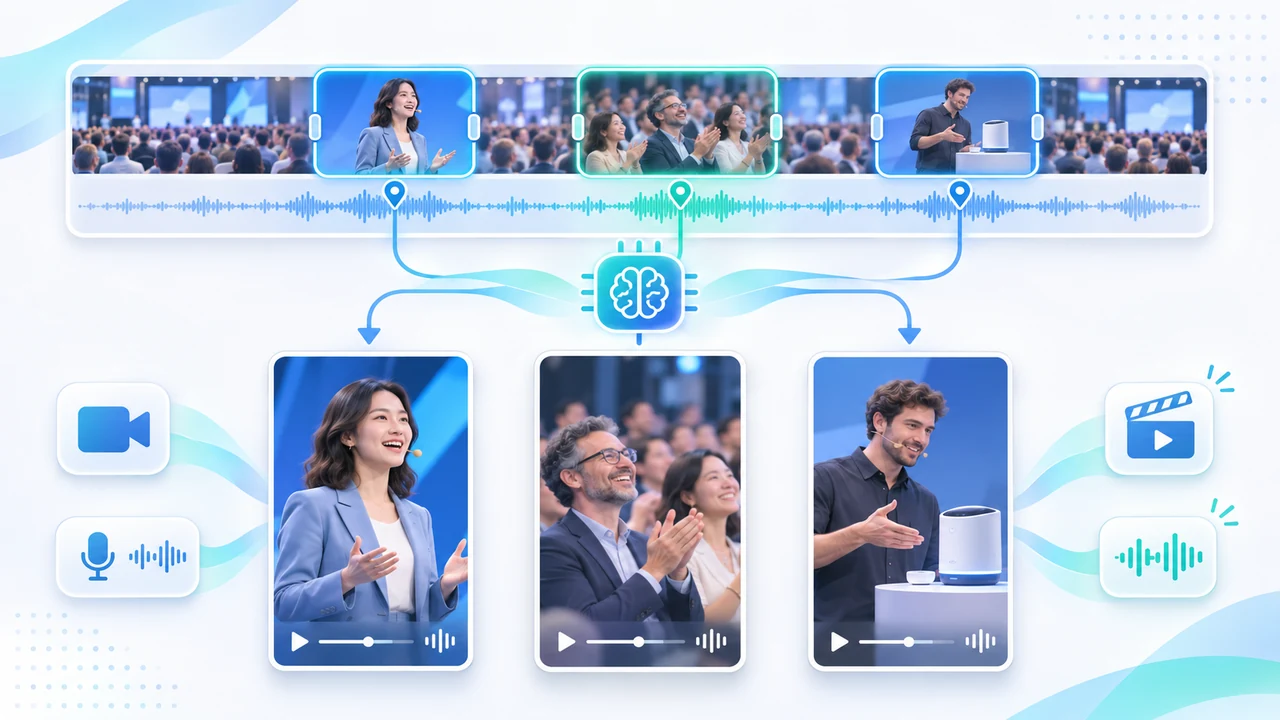
OpusClip ClipAnything tutorial readers will turn one permission-cleared, 12-minute event recap into three distinct 15–30 second vertical candidates: guest-arrival energy, the strongest speaker-applause moment, and a product-demo interaction. The result is not three automatically approved posts. It is a review package containing source timecodes, a 9:16 draft for each moment, corrected captions where speech exists, a clean audio check, and a human pass for context, releases, music rights, and brand accuracy.
OpusClip's official prompting tutorial, published December 5, 2024, explains the supported prompt categories and their limits. The current ClipAnything help flow, modified November 12, 2026 and reopened November 20, documents the Classic sequence: upload or link a video, select ClipAnything under Clip model, optionally choose a genre, enter a prompt, then choose a Quick Preset or No Caption. The page says the model uses visual, audio, and sentiment cues and is intended for footage with little or no dialogue. Those are vendor-documented capabilities; no clip was processed for this article, and no vendor result is presented as StevenVideo output.
This workflow differs from a transcript-first interview edit. Event footage often communicates through movement, crowd reaction, product handling, lighting changes, and sound peaks rather than complete sentences. ClipAnything can create a search shortlist, but the editor still decides whether a reaction is genuine, whether the shot has enough lead-in, and whether a vertical crop preserves the subject. For event capture planned around later repurposing, see event video pricing.
Check access, rights, and source media before upload
Use footage you own or have permission to process, and verify participant releases, venue rules, client confidentiality, licensed music, and any sponsor restrictions before uploading it to a cloud service. Keep the untouched camera or approved master file outside OpusClip. For this exercise, make a review copy of the 12-minute recap and a simple cue sheet with timecode, scene, recognizable people, sensitive moments, music changes, and the three desired outcomes. The cue sheet is the truth source when you later judge AI suggestions.
Current OpusClip pricing, checked November 20, 2026, lists Free, Starter, Pro, and Business plans. Its comparison table shows multimodal clipping by visual objects, sound, emotion, and genre on Starter and above; Free lists spoken-word clipping only. Starter currently accepts local files up to 10 GB plus several linked sources, supports 9:16 output, and lists watermark-free MP4 export with a 30-day project limit. Free lists local or YouTube import, 9:16, watermarked output, up to 1080p rendered clips, and a three-day limit. Exact credits for this 12-minute job were not displayed on the public ClipAnything guide, so confirm the signed-in submission estimate before processing. Plan names, entitlements, prices, and limits can change, and the checked pages stated no Canada-specific restriction.
Prepare a technically stable source: constant frame rate if possible, audible natural sound, no baked-in confidential notes, and enough resolution for a vertical crop. Do not upload every camera original simply because the tool accepts large files. A concise approved recap is faster to review and reduces privacy exposure. If the source contains licensed music, identify where that license permits social use; AI selection does not extend a license. If someone withdraws consent, remove their candidate before editing rather than trying to hide the issue with a tighter crop.
Submit three narrow English prompts in the documented UI
Open OpusClip Classic, upload the approved review copy or provide a supported link, and select ClipAnything under Clip model. Choose the closest event genre only if it accurately describes the footage. Set the preferred clip-length range in the submission controls rather than inside the prompt. For this task, target 15–30 seconds if the live control offers that range. Choose No Caption for a visual montage or a restrained preset when spoken words matter. Save a default only after confirming it will not contaminate unrelated projects.
Run three separate searches instead of one vague request. Copy these original prompts: Find the arrival moments where guests enter the branded venue and react with visible excitement. Find the speaker's strongest audience-applause moment, including the reaction immediately before and after the clap peak. Find every scene where a guest actively tries the featured product and the product remains clearly visible. The official ClipAnything Prompts Manual, undated and checked November 20, says prompts can target a scene, action, emotion, character, sound, or several moments. It also explicitly says prompts should be written in English. Chinese-speaking editors can plan in Chinese, but should submit a clear English search instruction under the documented limitation.
Keep search and editing separate. The manual says not to use prompts to change aspect ratio, clean audio, add transitions or effects, or control clip length. Those belong in submission settings, Brand Kit, or the editor after generation. Avoid a request such as “make three viral 9:16 clips with clean sound.” It mixes retrieval, formatting, cleanup, and an unprovable performance claim. One observable moment per prompt makes the returned candidates easier to compare against source timecode.
Review candidates against source timecode and event context
Open each result beside the source recap and record its source in/out timecode before changing anything. For the arrival candidate, look for a readable entrance, visible venue context, genuine reaction, and a clean endpoint. For applause, preserve the speaker's setup and the audience response; a clip beginning at peak clapping may feel loud but explain nothing. For the product demonstration, confirm the correct person, product, and action, and reject moments where a hand or foreground guest hides the feature. Do not use a high vendor “virality” score as the approval decision.
Reject four common failure types. Wrong match: the visual resembles the request but shows the wrong guest, product, or stage. Context loss: the extracted reaction changes meaning without the sentence or action before it. Duplicate coverage: two outputs are different trims of the same beat instead of three editorially distinct moments. Weak boundaries: the clip starts after the action or cuts before the response resolves. If several moments belong in one compilation, the prompt manual documents opening the result in the editor, choosing Add a Section, and selecting another source range. Use that only when the combined sequence has a clear reason; do not stitch unrelated reactions to imply an event that did not happen.
If the search misses, revise one variable. Replace a vague emotion with an observable cue, identify clothing or location, or name the relevant sound. For example, change “find exciting moments” to “find the moment when the audience stands and applauds after the keynote.” Keep a short log of prompt, returned timecodes, accepted candidate, rejection reason, and revised prompt. That turns retrying into an auditable editorial search rather than repeated guessing.
Finish the 9:16 cuts without trusting automatic framing
After selecting one candidate per objective, set the required 9:16 aspect ratio in the submission controls or editor—not in the search prompt. Watch every shot change and inspect whether the crop follows the right person or object. Crowd footage can confuse tracking when people cross, while a podium frame may keep the speaker centered but cut off sponsor signage or a demonstration table. Reframe manually where needed, and compare against the original composition before accepting a crop. The goal is a legible mobile story, not simply a filled vertical canvas.
Trim for editorial rhythm. Keep a short visual lead-in, the complete action or statement, and enough reaction to land the moment. Correct names, job titles, product terms, and captions against the approved event information. Where speech is minimal, captions should not invent a narrative. Check natural sound for clipped applause, sudden ambience jumps, distortion, or licensed music crossing the edit. ClipAnything's prompt does not clean audio or add transitions; perform those tasks deliberately in the editor or finishing software. Keep one no-music review version when music rights or client approval remain uncertain.
Treat each short as a deliverable with a distinct purpose: arrival establishes atmosphere, applause proves audience response without overstating success, and product interaction shows use rather than a static logo. Add approved branding only after the moment works. If the client needs a larger batch, platform-specific variants, caption review, and consistent colour and sound, use a defined social-media video package instead of multiplying unreviewed AI clips. Automation should shorten search time; it should not remove the editor who protects meaning.
Export, run final QA, and archive the evidence
Export each approved candidate as an MP4 using the highest resolution permitted by the signed-in plan and the actual source. Current public pricing lists up to 1080p rendered clips on Free, with a watermark and three-day project expiry; Starter lists watermark-free export, the highest available resolution, and a 30-day limit. Recheck the live export panel because public plan tables can change. Download before project expiry, then inspect the local file rather than assuming a completed cloud export is correct. This article documents the interface and sources but did not run a generation or export.
Use a six-pass QA checklist. Editorial: each clip represents a different requested moment and preserves context. Picture: 9:16 crop, faces, product, signage, shot changes, exposure, and no unintended private information. Audio: clean starts and ends, no clipping, consistent loudness, and licensed music only. Text: names, titles, captions, spelling, safe margins, and no invented quote. Rights: participant releases, venue and client approval, product claims, and platform music rights. File: expected duration, resolution, frame rate, audio channels, playback, filename, and no unwanted watermark. Review once muted and once with sound; event highlights must work visually without allowing captions to misrepresent what happened.
Archive the approved source filename and checksum, cue sheet, three English search prompts, returned source timecodes, rejection notes, crop decisions, caption corrections, export settings, local masters, and approval record. Keep the source-to-export map so a later correction does not require searching the whole event again. ClipAnything is useful when multimodal retrieval creates a faster shortlist from low-dialogue footage. Use manual editing when scene meaning, fast reframing, licensed audio, multilingual captions, or stakeholder approvals dominate the task. To plan a supervised event-to-social workflow, contact Steven Video Production with the source duration, release status, target platforms, languages, and deadline.
Frequently Asked Questions
Can OpusClip ClipAnything find highlights in videos with little dialogue?
Yes. The current official guide says ClipAnything uses visual, audio, and sentiment cues and recommends it for videos with little or no talking. Every returned moment still needs source-timecode and context review.
Is ClipAnything available on the free OpusClip plan?
The public pricing table checked November 20, 2026 lists spoken-word clipping on Free, while multimodal visual, sound, emotion, and genre clipping appears on Starter and above. Verify the signed-in entitlement before uploading.
Can a ClipAnything prompt set 9:16 and a 20-second duration?
No. The official prompt manual says aspect ratio and clip length are not prompt tasks. Choose length in submission settings and set 9:16 in the relevant controls or editor.
Do ClipAnything prompts support Chinese?
The current prompt manual explicitly says not to write prompts in a non-English language. Plan in Chinese if useful, but submit a clear English search prompt and review the actual footage manually.
Does OpusClip guarantee that selected event clips will go viral?
No. Vendor scores and marketing claims do not guarantee reach. Approve clips for context, rights, framing, sound, brand accuracy, and audience relevance before publishing.
Ready to start your project?
Get in touch for a free consultation. I typically respond within a few hours.