
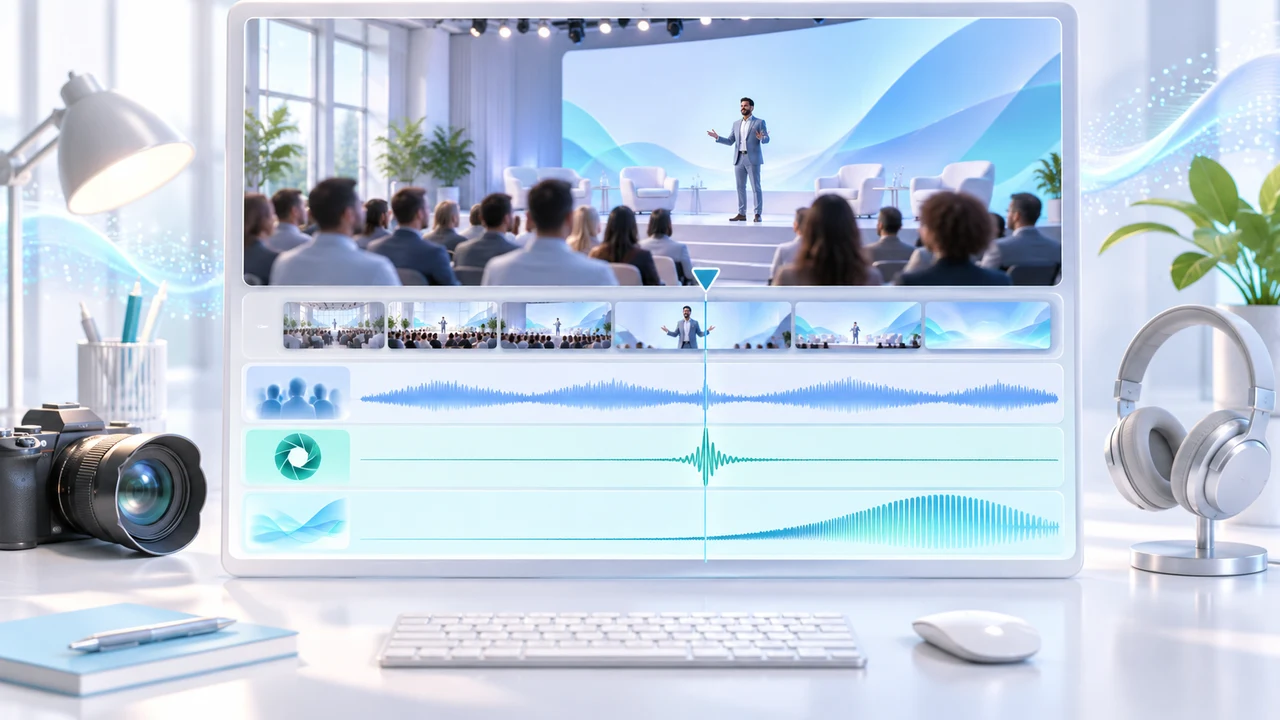
Adobe Firefly sound effects tutorial for layering ambience, a shutter hit, and a transition whoosh.
What this Adobe Firefly sound effects tutorial delivers
Adobe Firefly sound effects tutorial readers will build a controlled 15-second effects bed for an event teaser: room ambience under the opening shot, one camera-shutter accent, and one timed whoosh into the closing card. The practical deliverables are a composed reference clip, individually downloaded effects where needed, an SFX-only stem assembled in the editor, and a review checklist that protects dialogue and brand timing. Firefly Generate Sound Effects creates effects and ambience; it is not a music or speech generator.
Adobe's official text-to-sound-effects procedure, updated August 19, 2026, documents the current web path, upload limits, variations, timeline placement, trimming, volume, layering, and download. Its voice-guided procedure, updated August 18, 2026, adds timing guidance through a microphone recording. Both pages and the live help navigation were rechecked November 11, 2026. This article did not run a paid generation, so every capability statement is attributed to Adobe rather than presented as a Steven Video Production test result.
You need an Adobe account and a supported browser. Adobe's current access page lists Chrome, Edge, Firefox, and Safari. Sign in, confirm that Audio > Generate sound effects appears, and inspect the in-product credit indicator before generating. Adobe's generative credits overview, updated August 17, 2026, says allocations depend on the plan and consumption depends on the feature; the operational sound-effects page does not publish a fixed per-generation number. For a managed event capture and post workflow, see event video pricing.
Prepare one short teaser and a three-cue sound map
Start with a rights-cleared 15-second conference teaser, not the final client master. Keep the spoken interview or stage line on its own track in the local edit, then export a temporary MP4 reference without licensed music. Adobe currently accepts MP4, MP3, MOV, WAV, and AAC uploads up to 30 seconds. That limit makes this feature useful for a bounded sequence, but it is not a replacement for mixing a full event film. Save an untouched source, the dialogue stem, timecode notes, and the approved cut before uploading client media.
Make a cue map before using credits. For this original scenario: 0:00–0:07 conference-hall ambience supports wide shots; 0:07.2 a single shutter accent lands on a photographer cut; 0:12.0–0:12.8 an airy rising whoosh follows the motion into the approved closing graphic. Leave speech-dense sections intentionally sparse. The effect should explain an action or transition, not fill every silence. Note whether the final destination is a phone speaker, web player, venue screen, or broadcast mix because low-frequency content and stereo width will translate differently.
Use one copyable prompt per sound, following Adobe's prompt-writing guide, updated August 18, 2026: large conference hall crowd murmur, natural indoor reflections, distant, no distinct words, no music; single professional camera shutter burst, close, crisp, short decay; short airy whoosh rising gently, clean stop, modern brand transition, no impact. Adobe recommends describing one sound at a time, then layering separate results. That keeps rejection and replacement decisions specific.
Follow the documented Firefly timeline sequence
From the Firefly homepage, choose Audio in the left panel, then Generate sound effects. Select Upload media, add the 15-second reference, and preview it with the play control or spacebar. Position the playhead at the start, enter the room-ambience prompt, and select Generate. Listen to every displayed variation before selecting one; Firefly inserts the chosen variation at the current playhead position. Move it with the grab cursor, trim its ends inward, and lower its volume so it sits beneath speech rather than competing with it.
Move the playhead to 0:07.2 and generate the shutter as a separate cue. If a new result is better, select the existing effect and choose a replacement variation rather than stacking duplicates. For the transition, select Add Audio Track, place the playhead at 0:12, and generate the airy whoosh. Adobe documents support for up to five audio tracks in addition to the uploaded media track. Use that capacity for separation, not as a target; this teaser needs only three SFX layers. Rename or download selected clips while their purpose is still obvious.
When a transition needs more precise rhythm than text alone provides, switch to Adobe's documented voice-guided workflow. Grant microphone access, record a simple nonverbal whooosh—stop gesture aligned to the picture, then pair it with the written whoosh description and generate variations. The voice recording guides timing and energy; it is not meant to become narration. Do not speak confidential names or client copy into a guidance take. Preview from several seconds before the cue so the effect is judged in context rather than solo.
Iterate one failed layer at a time
Reject a variation for a named reason before generating again. If ambience contains intelligible speech, replace it with a broader prompt such as conference room ambience, soft diffuse crowd texture, no distinct voices. If it sounds like music, remove emotional or rhythmic language and state no music. If the shutter becomes a rapid burst, specify single and short decay. If the whoosh lands late, use voice guidance or move the playhead and clip; do not regenerate the ambience. One-variable retries preserve both budget and decision history.
Trim long tails before raising volume. A tail that crosses into dialogue may make the voice feel quieter even when meters do not clip. For a hard boundary, leave a tiny fade in the downstream editor rather than exporting a click. If the whoosh masks the closing word, shorten it, lower it, or move its peak after the consonant. If the ambience exposes a loop, choose a steadier variation or cover the boundary with a crossfade after download. Firefly's documented timeline controls include position, trim, mute, and volume, but final loudness, fades, routing, and delivery metering still belong in a full editor.
Keep a compact retry log: cue, prompt version, selected variation, rejection reason, trim, level, and download filename. Stop when each sound serves the cut and survives dialogue playback; do not keep generating to search for an undefined perfect effect. Teams producing frequent vertical teasers can compare this bounded workflow with social-media video pricing, especially when client approvals, captions, platform versions, and licensed music must be coordinated beyond the generated SFX.
Download, mix, and run event-teaser QA
Preview the full Firefly composition with the main play control or spacebar, then use Download for the composed clip. Also download the selected individual effects when the interface offers that option, because the local editor provides better control over fades, automation, dialogue ducking, naming, and stems. Keep the uploaded reference only as a timing proxy. Rebuild the approved mix against the original high-quality picture and dialogue, not against a repeatedly compressed preview. Export an SFX-only stem and a full reference mix; keep music separate because Generate Sound Effects is not the music-licensing step.
Run four passes. Content QA: no recognizable words, unintended music, speech-like fragments, or misleading real-world cue. Timing QA: shutter lands on the visual action, whoosh starts and stops with the transition, ambience has no obvious loop or abrupt tail. Mix QA: dialogue remains intelligible, no clicks, clipping, pumping, phase problems, or excessive low end; audition on headphones, laptop, and phone. Delivery QA: duration, sample rate, channel format, frame sync, file names, clean/SFX/full versions, rights notes, and client approval all match the brief. When a generated effect suggests a real announcement, alarm, or safety signal, verify that it cannot confuse viewers.
Archive the source reference, prompt versions, downloaded variations, selection notes, credit estimate shown by the account, mix session, stems, final exports, and approval. The paired Chinese Firefly sound-effects tutorial contains the same controls with a Chinese QA checklist. If you need an event or social teaser with controlled capture, dialogue cleanup, generated effects, music licensing, captions, and client review, contact Steven Video Production with the cut length, deadline, platforms, source-media rights, dialogue status, and delivery specs.
Know where Firefly stops and the editor begins
Firefly is useful here because the task is narrow: generate and time several isolated effects against a clip of 30 seconds or less. It does not verify whether an effect is factually authentic to a venue, clear the rights of uploaded client footage, repair poor dialogue, license music, create final captions, or guarantee platform loudness. A generated camera sound may support an edit, but it should not imply that a photographed moment occurred when it did not. Keep documentary and client-approval standards intact.
Plan and interface access can change. Before a paid session, check the signed-in account, the Audio tile, the displayed credit balance, upload permissions, and the current Adobe help pages. The help procedure did not state a regional exclusion or fixed sound-effects credit price when checked on November 11, 2026; absence from that page is not proof of universal availability or zero cost. Enterprise teams should also follow their own data-handling policy before uploading unreleased event footage.
Use self-service when the cut is short, the cues are simple, the rights are clear, and someone can perform an honest final mix review. Bring in an editor or producer when dialogue, brand claims, multilingual captions, licensed music, accessibility, many deliverables, or rapid client approvals interact. The value is not generating more sounds; it is knowing which three cues help the story, documenting what was generated, and delivering versions that remain understandable on the viewer's actual device.
Frequently Asked Questions
How do I generate sound effects in Adobe Firefly?
Open Firefly, choose Audio, select Generate sound effects, enter one sound description, choose Generate, audition the variations, and place the selected result at the playhead.
Can Adobe Firefly add sound effects to an uploaded video?
Yes. Adobe currently documents MP4, MP3, MOV, WAV, and AAC uploads up to 30 seconds, with generated effects placed and layered on its timeline.
How many sound-effect tracks can Firefly use?
Adobe's current help page documents up to five audio tracks in addition to the uploaded media track. Use only the layers the mix needs.
Does Firefly Generate Sound Effects make music or speech?
No. This workflow is for effects and ambience. Use separate, properly licensed workflows for music and approved tools for speech.
How many credits do Firefly sound effects cost?
The current procedure page does not state a fixed amount. Adobe says allocations and consumption depend on plan and feature, so check the signed-in credit indicator before generating.
Ready to start your project?
Get in touch for a free consultation. I typically respond within a few hours.