
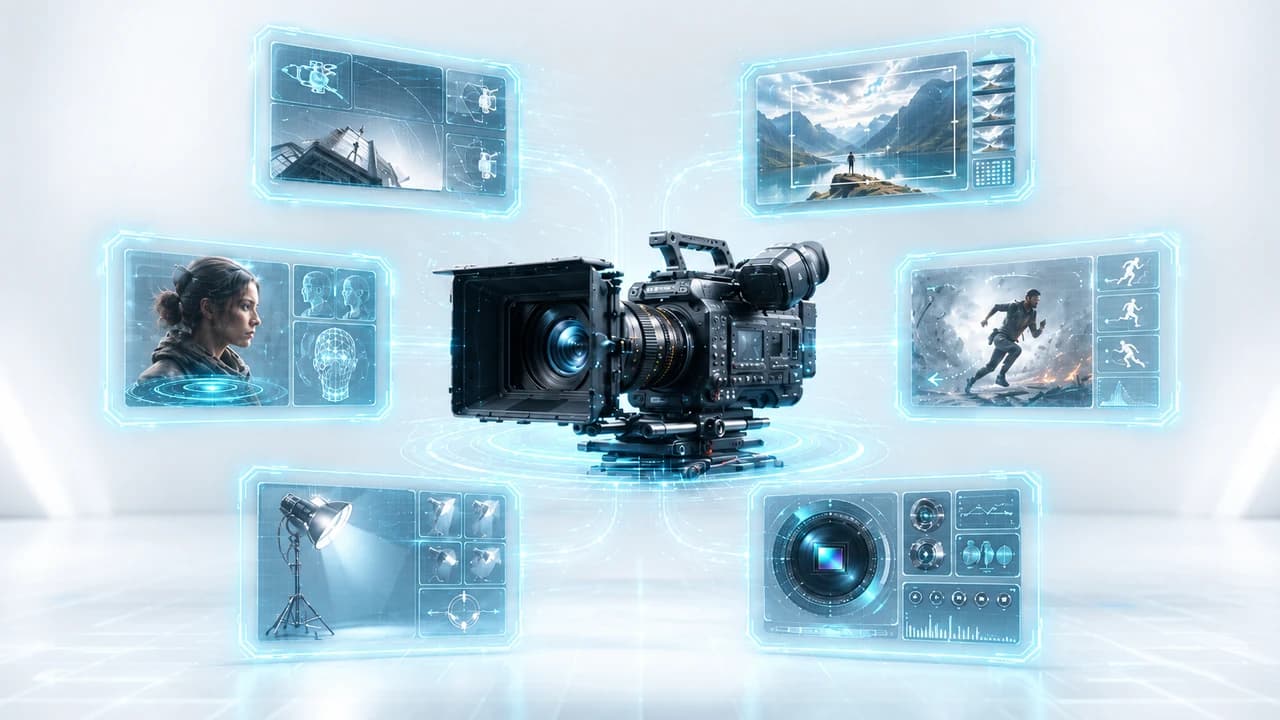
Veo 3.1 prompt guide 2026: the six-part cinematic formula — [Camera] + [Scene] + [Character] + [Action] + [Lighting] + [Specs] — that professional video creators use to produce broadcast-quality AI video consistently. Includes real prompt examples for corporate video, real estate marketing, and social media content, plus how to use Veo 3.1's Start/End Frame workflow and native audio generation for video production in Vancouver.
Why Veo 3.1 Changed the Game for AI Video
Veo 3.1 is Google's most capable text-to-video model as of mid-2026, and it stands out from competitors in two specific ways: a structured six-part prompt formula that reliably produces cinematic results, and native audio generation in the same render pass — meaning you get synchronized ambient sound, atmosphere, and environmental audio alongside your video without any extra steps.
Most AI video tools in 2026 excel at one or two things. Kling 3.0 has 17 distinct camera motion types and is the strongest tool for motion-controlled cinematography. Seedance 2.0 shines at reference-based creation — feeding it an image, video, or audio clip to lock down specific elements. Veo 3.1's edge is holistic storytelling: when you want a scene that feels written, lit, acted, and scored rather than just generated, Veo 3.1's structured input approach gives you more control over the complete picture.
This guide focuses specifically on how to write prompts that consistently get cinematic results from Veo 3.1 — the six-part formula, how to apply it to real professional use cases, and when to pair it with other tools or with a professional crew.
The Six-Part Formula: How to Structure Every Prompt
The formula that produces the most consistent results with Veo 3.1 uses six distinct building blocks, written in sequence: [Camera] + [Scene] + [Character] + [Action] + [Lighting] + [Specs].
Each block controls a different layer of the output:
Camera — Shot type and movement. Be specific: 'close-up dolly-in' tells the model both where the lens is (tight on a face or object) and how it moves (slowly pushing in). 'Wide establishing aerial pull-back', 'handheld tracking shot', 'static mid-shot' — the more precise, the more reliable the result.
Scene — Location, time of day, and environmental detail. 'Glass Vancouver boardroom, midday' gives the model a real-world anchor. Add textures where they matter: 'rain-streaked window', 'polished concrete floor', 'morning fog over English Bay'.
Character — Physical description and emotional state. Not just 'a person', but 'suited executive, mid-40s, confident posture' or 'couple in their 30s, relaxed, walking'. The emotional state ('focused', 'excited', 'contemplative') directly influences the performance feel.
Action — What physically happens in the clip. Active verbs work better than states: 'turns toward camera and begins speaking' is stronger than 'is speaking'. Keep it simple and concrete.
Lighting — Quality and direction of light. 'Natural light through floor-to-ceiling windows, warm backlit' or 'soft diffused overhead fill, product photography style'. Lighting is often the difference between a clip that reads as professional and one that looks AI-generated.
Specs — Duration, style, and technical parameters: '8s, cinematic, 4K 16:9' or '5s, documentary feel, 1:1 vertical'. Including a style flag ('cinematic', 'editorial', 'documentary') helps anchor the overall tone.
Prompt Examples for Real Professional Use Cases
The formula comes into focus when applied to actual production scenarios. Here are tested examples across three common use cases:
Corporate Video — Executive Interview B-Roll: Close-up dolly-in | Glass boardroom, city skyline through windows, midday | Suited executive, late 40s, calm authority | Reviews documents, glances toward camera | Soft natural light from windows, subtle rim backlight | 8s, cinematic 4K, 16:9
This type of shot works well as corporate video production Vancouver B-roll — atmospheric, professional, fills space between main interview segments without being distracting.
Real Estate — Property Reveal: Slow push-in aerial descend | Modern detached home, tree-lined suburban street, golden hour | No characters | Camera descends from treetop height to second-floor window level | Low golden sunlight, long shadows across lawn | 10s, smooth, cinematic 4K 16:9
For real estate video Richmond projects, this type of exterior establishing shot creates a strong first impression that holds attention on listing pages.
Social Media — Brand B-Roll: Oblique tracking shot | Busy Vancouver coffee shop, morning rush | Young professional, mid-20s, focused expression | Typing on laptop, glances at phone | Warm ambient light, bokeh background | 6s, editorial, vertical 9:16
Event Coverage — Crowd Atmosphere: Wide tracking through crowd | Corporate conference hall, ceiling lights and stage | Mixed professional audience | Mingling, animated conversations | Warm stage lighting spilling into crowd | 8s, documentary feel, 16:9
These types of clips fill the parts of an event videographer Vancouver project where you need atmosphere and energy without requiring specific on-camera moments.
The Start/End Frame Workflow: Controlling Where Clips Begin and End
Beyond the six-part formula, Veo 3.1 offers a Start/End Frame workflow that gives you a different kind of control: instead of describing a shot, you provide a specific first frame and a specific last frame, then describe the movement between them.
This is particularly powerful in two scenarios:
Bridging existing footage. If you have a photo or still from an actual shoot — an exterior shot of a property, for instance — you can use it as a start frame, provide a target end frame (the front door at close range), and Veo 3.1 generates the approach sequence between them. Two stills become a smooth motion sequence without additional location shooting.
Branded transitions. For corporate work, Start/End Frame can generate the exact reveal sequence you need — a product appearing from darkness, a logo fade-in, a scene transition that lands on a specific composition. You control both the start state and the end state; the model generates the motion in between.
The practical workflow: export a high-quality frame from existing footage or create a comp in your editing software as your start frame. Generate or select your target end frame. Input both into Veo 3.1's interface with a motion description (direction, speed, camera behaviour). The output clips directly into your timeline with consistent start and end compositions.
For drone videography Vancouver projects, this means combining actual aerial footage with Veo 3.1-generated approach sequences — real drone shots for the hero moments, AI-generated transitions for coverage.
Native Audio: What It Means for Your Production Workflow
Veo 3.1's native audio generation sets it apart from every other tool in this category — Kling, Seedance, Wan, and LTX 2.3 all produce silent video that needs separate audio treatment.
What Veo 3.1 generates isn't a generic music track. It produces audio that matches what's visually happening in the clip: footsteps on a specific surface, ambient crowd noise at a conference, wind through trees in an exterior shot, the low hum of equipment in an industrial space. It's environmental audio — and that's exactly what makes it useful for production.
In practical terms: a social media clip showing a professional in a busy coffee shop generates with background chatter, espresso machine sounds, and ambient room tone already in the file. An exterior real estate clip includes wind and neighbourhood ambient audio. You're not starting from a silent render — you're starting from a clip that already has a sonic environment.
Where this saves the most time is content that needs to feel immersive but doesn't require precisely synced sound design. For a reel, a social post, or atmospheric B-roll that will carry voiceover or music anyway, Veo 3.1's native audio gives you a base layer that makes the clip feel alive immediately.
For work where audio needs to be precise — dialogue sync, specific product sounds, music timing — dedicated audio production is still the right choice. But for the volume of content that social media and marketing require, eliminating the silent-render-plus-separate-audio step is a real workflow improvement.
Veo 3.1 vs. Hiring a Professional Videographer: Where the Line Is
Veo 3.1 is genuinely capable — but understanding where it fits in a production workflow means being honest about what it does well and where it falls short.
Veo 3.1 works well for: B-roll and atmospheric filler content, social media at volume, pre-production visualization and client mood boards, transitional sequences between key moments, and content where cinematic feel matters more than documentary accuracy.
Veo 3.1 doesn't replace professional production for: client-facing corporate video Vancouver where brand credibility is on the line, real estate video listings that need to accurately represent the actual property, event coverage where the actual moments matter, or any project where 'it looks AI-generated' would undermine the client relationship.
The approach used by most professional video teams in 2026 is hybrid: shoot hero content with a professional crew, use Veo 3.1 (and tools like it) to generate supporting content, B-roll, and social derivatives. A one-day corporate shoot produces hero footage; Veo 3.1 generates the filler content that would otherwise require a second shoot day.
For businesses evaluating whether AI video tools replace or supplement professional production, the honest answer is: supplement. The gap between 'looks AI-generated' and 'looks like a real production crew was there' is still detectable — and for content where that distinction affects how clients perceive your brand, the professional option still wins. See our services to understand what a professional production adds.
Getting Started with Veo 3.1: Access, Cost, and First Steps
Veo 3.1 is available through Google's VideoFX (labs.google.com), Google AI Studio, and the Vertex AI API for developer integration. For non-technical users, VideoFX is the most accessible starting point — paste your prompt, select duration and aspect ratio, and the model generates.
Pricing runs approximately $0.40 per second of generated video at Standard 4K quality through the API. For casual use through VideoFX, Google offers a credit-based access model with a monthly allocation. For production use at volume, the API route via Vertex AI is more cost-predictable.
First-session recommendations:
- Use the six-part formula for every prompt — don't try to write naturally, use the structured format deliberately.
- Vary one element at a time when iterating. If lighting is wrong, fix only the lighting block and regenerate.
- Keep clips short for high-quality results — 6-8 seconds tends to produce more consistent output than 10-15 seconds.
- Use Start/End Frame when you have a specific composition requirement — it dramatically reduces iteration cycles.
- Export at the highest available quality for maximum editing flexibility.
The learning curve is shorter than most tools because the formula gives you a structured language to iterate against rather than free-form trial and error. Within a few sessions, you'll develop a clear sense of which prompt adjustments reliably shift which aspects of the output.
For questions about integrating AI video tools into a professional production workflow, contact Steven Video Production — we test these tools across real client projects and can advise on what fits your specific use case.
Frequently Asked Questions
What is the six-part Veo 3.1 prompt formula?
The six-part formula is [Camera] + [Scene] + [Character] + [Action] + [Lighting] + [Specs]. Each element controls a different layer of the output: Camera handles shot type and movement, Scene sets location and environment, Character describes who is in the shot and their emotional state, Action describes what physically happens, Lighting controls quality and direction of light, and Specs sets duration, style, and aspect ratio. Writing prompts in this structured format consistently produces more cinematic results than free-form descriptions.
How much does Veo 3.1 cost per video?
Veo 3.1 Standard 4K through the Vertex AI API runs approximately $0.40 per second of generated video. An 8-second clip costs roughly $3.20. Google's VideoFX (labs.google.com) offers credit-based access with a monthly allocation for casual users — a more accessible starting point before committing to API usage at scale.
Can Veo 3.1 generate audio with video?
Yes — Veo 3.1 is the only major AI video tool in 2026 that natively generates synchronized environmental audio in the same render as the video. It produces ambient sounds that match the visual content: crowd noise, wind, machinery hum, footsteps on specific surfaces. This is environmental audio rather than music, which makes it useful as a base layer for social content, B-roll, and atmospheric clips.
What's the difference between Veo 3.1 and Kling 3.0 for professional video?
Veo 3.1 and Kling 3.0 excel at different things. Veo 3.1 is strongest for holistic cinematic storytelling — using its six-part formula to produce a scene that feels written, lit, and performed, with native audio included. Kling 3.0 is strongest for precise camera motion control, with 17 distinct camera movement types. For corporate B-roll and narrative content, Veo 3.1 is often the better choice. For shots where the camera movement itself is the main creative element, Kling 3.0 wins.
Can Veo 3.1 be used for real estate video production in Vancouver?
Veo 3.1 can generate exterior establishing shots, atmospheric neighbourhood context, and property reveal sequences useful as supplementary content for real estate marketing. The Start/End Frame workflow is particularly useful for bridging existing property photos into smooth motion sequences. However, for MLS listings and client-facing marketing that need to accurately represent the actual property, professional real estate video production remains the standard — AI-generated video supplements rather than replaces accurate property documentation.
How do I access Veo 3.1?
Veo 3.1 is available through Google's VideoFX at labs.google.com (credit-based, good for casual use), Google AI Studio, and the Vertex AI API for production-scale usage. VideoFX is the most accessible starting point for non-technical users — no coding required, just paste your prompt and select options.
Ready to start your project?
Get in touch for a free consultation. I typically respond within a few hours.