
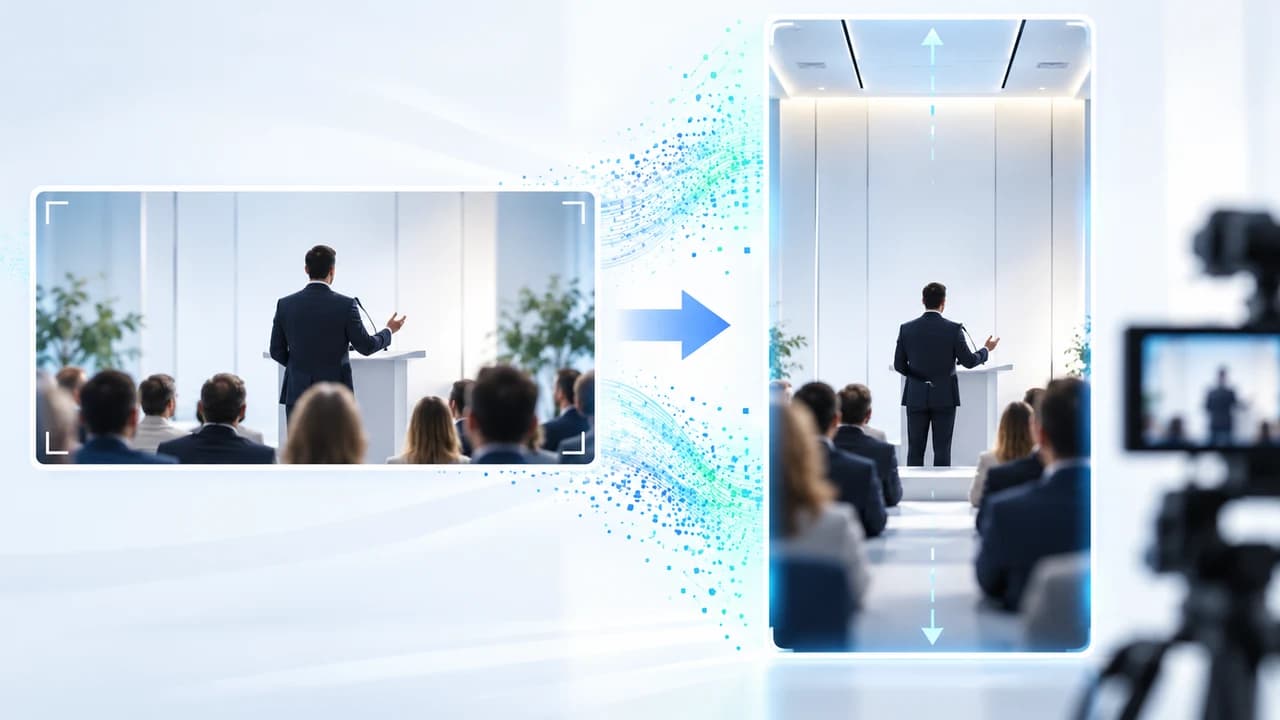
Runway Edit Studio Expand Ratio 16:9 to 9:16 tutorial for turning one approved event shot into a vertical cut.
What this Runway Edit Studio exercise produces
Runway Edit Studio Expand Ratio 16:9 to 9:16 tutorial readers will turn one permission-cleared, eight-second event shot into a vertical social cut without simply cropping the speaker. The source should be a continuous 16:9 shot of one presenter and microphone against a reasonably stable conference-room background. The goal is narrow: preserve the original centre image while Aleph 2.0 generates the newly exposed area needed for 9:16. Captions, sponsor marks, and the final call to action stay out of the generation and are added accurately in an editor.
Runway's official Expand Ratio walkthrough documents the complete task, and its broader Edit Studio guide explains the Aleph 2.0 editing environment. Both pages are undated and were checked October 28, 2026. The dedicated walkthrough currently says Expand Ratio is available; the broader guide still says Expand mode is coming soon. Because those official pages conflict, treat the dedicated walkthrough as the procedure but confirm that selecting a different aspect ratio activates expansion in your own account. If it does not, stop rather than substituting an invented control.
This lesson was reconstructed from those live documents; no paid generation was submitted and no output quality is claimed. The cover is an illustration, not a result. For planning, filming, and repurposing real conference material, see event videography in Vancouver. This article concentrates on one documented AI reframing task.
Prepare an eligible eight-second source clip
Start with footage that the organizer and visible speaker have approved for this social use. Verify whether sponsor signs, audience faces, slides, and music are also cleared. Keep an untouched master outside Runway and export a working copy. The Expand Ratio walkthrough requires a conventional aspect ratio, a duration longer than two seconds and shorter than 30 seconds, 480p to 1080p resolution, and 24 to 30 fps. It recommends 720p or 1080p and a single shot without cuts; clips over 30 seconds are trimmed and frame rates above 30 are downsampled.
Choose eight seconds where the speaker remains near the centre, the microphone does not cross the frame edge, and the background has enough repeated wall, curtain, or lighting information to extend. Avoid a cut, fast whip pan, crowded edge, projected text, or another person entering halfway through. Expansion invents pixels outside the original image; it does not recover a camera view that was never recorded. If a sponsor logo must be factual, do not ask the model to recreate it. Remove it from the expansion request and place the approved artwork later.
Make a reference still from the source and list the elements that cannot change: face, clothing, hand count, microphone shape, podium edge, banner text, and original centre composition. Then list the only acceptable additions: continuation of the same wall, ceiling light, floor, and neutral room ambience. This becomes the rejection checklist. If the source itself is shaky, compressed, or blocked at the edges, a conventional crop, designed background, or reshoot may be safer than generation.
An eight-second Aleph 2.0 pass costs 224 credits at the documented 28 credits per second, before keyframe-image cost. Confirm the displayed total before generating; public rates can change.
Open Edit Studio and activate Expand Ratio
Sign in to Runway, open Apps, choose Video, and select Edit Studio. Click Upload for the prepared local file, Select for a Runway asset, or drag the clip into the upload area. Confirm the displayed duration and preview the entire source before changing anything. The public Free-plan guide says free accounts receive 125 one-time credits and only a changing subset of tools. Standard and higher plans provide broader model access, but entitlements still need to be checked in the live account.
In the dedicated Expand Ratio walkthrough, selecting an aspect ratio different from the uploaded source activates the expansion and displays borders around the new area. Choose 9:16. Do not confuse this with cutting a narrow window out of 16:9: the original pixels should remain visible while the top and bottom or surrounding canvas is generated for the vertical frame. If the interface only offers Single edit and does not activate expansion, the documentation and your account are out of sync. Record the screen and pause the workflow.
Select a clear keyframe, ideally one that shows the speaker, microphone, and widest useful view of the room. The walkthrough says a text prompt is optional, but here it provides boundaries for the new area. Submit the keyframe edit first. Generated keyframes appear in the Prompt versions tray. Hover over a version to access Reuse prompt, Edit this image, or Preview. Use Preview to compare before and after, and reject any keyframe that changes the protected centre composition.
Keyframe iteration currently costs 5 credits with GPT Image 2, 8 with Gen-4 Image, or 20 with Nano Banana Pro according to the official page. The selected image model and charge must be read from the interface rather than assumed.
Use this original prompt for the newly exposed area
The prompt should describe what belongs outside the original frame, not redesign the event. Paste the following and adjust only verified room details. It is original to this StevenVideo scenario rather than copied from Runway's examples.
Copyable prompt Continue the same conference-room walls, ceiling, floor, and soft neutral lighting into the newly exposed 9:16 area. Preserve the original speaker, face, clothing, hands, microphone, podium, camera angle, focus, and centre composition exactly. Add no extra people, screens, signs, logos, words, furniture, or objects. Match the source perspective, colour temperature, grain, and natural background movement. The expanded area should remain visually quiet with safe space above and below for captions added later in editing.
Generate the keyframe preview and inspect it at full size. Compare the face, ears, hairline, fingers, microphone grille, podium edge, wall joins, and every visible letter in the original centre. The surrounding room should extend naturally, but it is still synthetic and should not imply a larger venue, additional sponsor, or audience that was not recorded. If the preview changes the source subject, use Edit this image or Reuse prompt and simplify the request. Do not proceed because the invented area looks attractive.
Once one keyframe passes, keep it selected and click Generate Video. The official walkthrough says Aleph 2.0 then uses the selected keyframe without needing a second prompt. The result appears in the video versions feed while processing. Save the source filename, keyframe model, prompt, generation date, selected ratio, and displayed credit total. This record matters when a client asks which pixels came from the real event and which were generated.
For recurring social deliverables, social-media video pricing can be scoped around approved source footage, platform versions, captions, and human QA rather than generation alone.
Troubleshoot with one-variable iterations and a stop rule
Review the output frame by frame around the first second, the largest gesture, and the final second. Reject it if the face drifts, a hand gains or loses fingers, the microphone bends, the podium changes shape, existing text mutates, or a new person appears. Also watch the border between original and generated pixels for pulsing walls, sliding light fixtures, mismatched grain, or a vertical seam. Listen to the source audio separately; visual expansion should not justify changing a speaker's words or replacing approved event sound.
When the centre changes, shorten the prompt to preservation plus one background instruction. When a wall pulses, choose a calmer keyframe and describe the wall material once. When the system invents signage, remove every style adjective and repeat that the new area contains no text, signs, or logos. When hands or microphones touch the expansion boundary, select a different eight-second passage or reduce the requested use. One variable per iteration makes the cause visible.
Set a bounded stop rule before spending credits. After two failed keyframes or two video passes on the same factual defect, switch methods. Options include a conventional 9:16 crop with animated position, placing the 16:9 clip inside a designed vertical canvas, using a blurred extension, or rebuilding the social edit from another camera angle. A generated vertical frame is not automatically better than an honest layout that keeps the event record intact.
Runway documents Aleph 2.0 at 28 credits per second with a 56-credit minimum. It also says a ranged edit charges only for that selected portion, but the export guide notes ranged edits always return MP4. This exercise uses the full eight-second clip. Costs, queue behavior, and plan access are vendor-controlled settings, not StevenVideo test results.
Export, add captions, and complete event-video QA
Download the approved result in the format your account offers. MP4 is the default. Runway's official output-format guide, undated and checked October 28, 2026, says ProRes and PNG Sequence are available for full Aleph 2.0 edits on Max, Unlimited (Legacy), and Enterprise plans, with an added five credits per second. Ranged edits return MP4. Choose the format at generation time because the guide says it cannot be changed afterward without generating again.
Bring the result into the normal edit. Preserve the approved source audio unless there is a documented reason to replace it. Add exact speaker name, title, captions, sponsor marks, and CTA as editor-controlled layers. Keep important copy inside 9:16 safe zones and never place generated room detail where viewers might interpret it as a factual sponsor wall or venue feature. If the expansion is material to the context, tell the client and label it in the production record.
Complete three viewing passes: normal speed with headphones for speech and pacing; muted, frame-by-frame review for face, hands, microphone, text, seams, and edge motion; then a phone check at ordinary brightness for caption size and crop. Compare the centre of the final export with the original source still. Confirm dimensions, frame rate, audio channels, duration, filename, language, consent, music rights, caption accuracy, and the intended platform. Keep the untouched source, generated intermediate, final edit, prompt, credit receipt, and approval together.
To adapt approved event footage into bilingual vertical deliverables, contact Steven Video Production with the source clip, releases, platform, deadline, and details that must not change. AI expansion remains optional; the delivery method should protect the speaker and the factual event record.
Frequently Asked Questions
Can Runway Edit Studio convert 16:9 video to 9:16 without cropping?
Runway's dedicated Expand Ratio walkthrough says Aleph 2.0 can generate the newly exposed area while keeping the original frame. Confirm the expansion control in your live account because another official guide still labels Expand as coming soon.
What video can I upload to Runway Expand Ratio?
The official walkthrough lists conventional ratios, longer than 2 seconds and shorter than 30 seconds, 480p to 1080p, and 24 to 30 fps. A continuous shot without cuts is recommended.
How many Runway credits does an eight-second Expand Ratio edit use?
At the documented Aleph 2.0 rate of 28 credits per second, the video pass is 224 credits. Keyframe generation adds 5, 8, or 20 credits with the currently listed image models. Check the live total before submitting.
Does Runway Edit Studio work on the Free plan?
Runway says Free includes 125 one-time credits and a changing subset of tools. That is below the documented 224-credit cost of this eight-second video pass, and the account may require an upgrade.
Does Expand Ratio preserve a speaker exactly?
It is not guaranteed. Preview the keyframe and compare the complete output with the original face, hands, microphone, podium, text, and centre composition. Reject or use a conventional layout if factual elements change.
Can Runway export ProRes from Edit Studio?
Runway documents ProRes and PNG Sequence for full Aleph 2.0 edits on Max, Unlimited Legacy, and Enterprise plans. They add five credits per second; ranged edits return MP4.
Ready to start your project?
Get in touch for a free consultation. I typically respond within a few hours.