
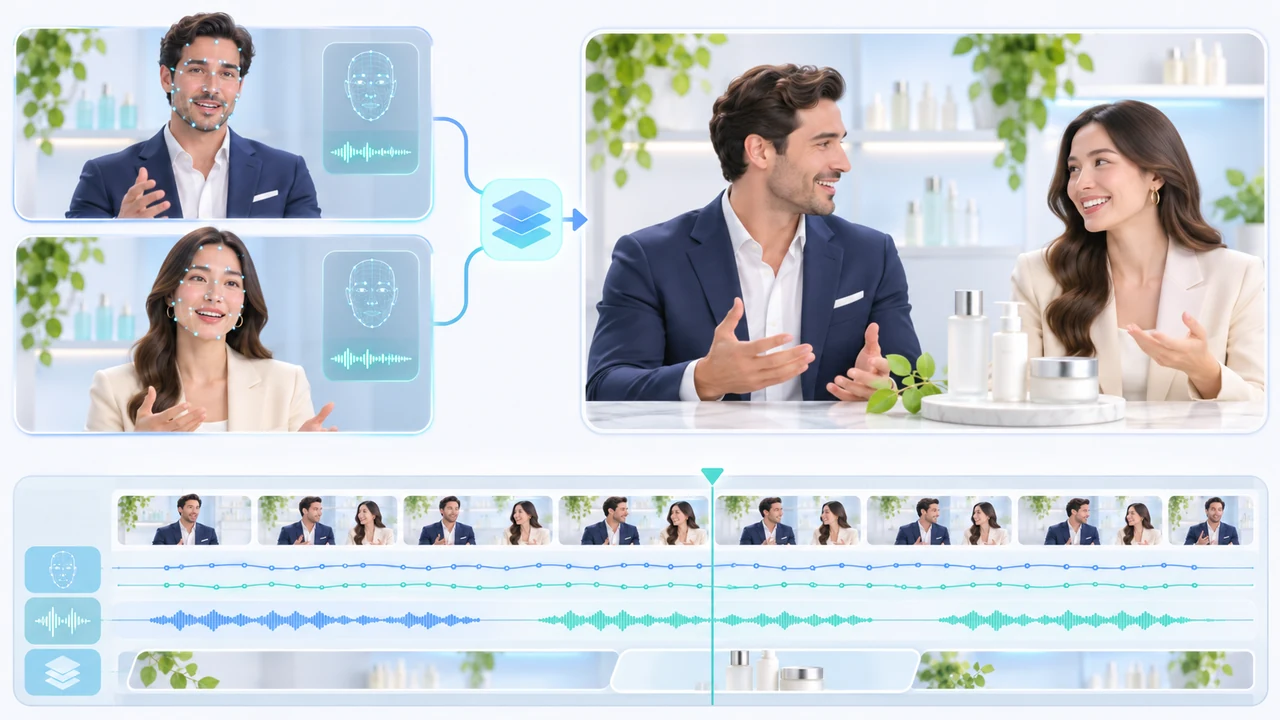
Runway Act-Two multi character tutorial for building a reviewed two-person brand dialogue from isolated takes.
What this Runway Act-Two multi character tutorial makes
Runway Act-Two multi character tutorial readers will build one 15–20 second skincare-brand conversation from two separately recorded performances. The finished scene has two fictional presenters in one shared environment: Character A introduces a winter-skin formula, and Character B asks to see the texture before discussing the claim. Each performance is generated alone, then aligned over the same base scene in a local editor. That distinction matters because Act-Two currently accepts one character performance at a time; the multi-character result is a documented compositing workflow, not a one-click group mode.
Runway's official multi-character dialogue tutorial documents the sequence using Act-Two, Gen-4 Image, Gen-4 Video, separate performance recordings, and a local editor. Its official Performance Capture with Act-Two guide documents the current controls, input rules, cost, output sizes, and troubleshooting. Both pages are undated and were checked November 9, 2026.
Current documented access is Runway Web on a Standard plan or higher. Act-Two costs 5 credits per second with a three-second minimum and supports up to 30 seconds at 24 fps. It takes one driving-performance video plus one character image or video. Character images can transfer gestures; character videos retain their existing body, environment, and camera motion while Act-Two controls face and expression. This article did not sign into a paid workspace or submit a generation, so all capability statements are attributed to Runway rather than presented as Steven Video Production test results. Check the live duration cost before generating. For a professionally managed hybrid workflow, see AI video production in Vancouver.
Prepare one shared scene and two clean performances
Start with rights, not prompts. Use performers, voices, products, wardrobe, and brand references that you are authorized to upload and transform. Write the exact approved claims before recording. In this exercise, Character A says: This formula was developed for dry winter skin. Character B replies: Show me the texture before we discuss the claim. Those lines are deliberately short, factual, and easy to time. Do not make the model invent efficacy, regulatory, or testimonial language. Keep an untouched copy of each recording outside the cloud project.
Record one continuous driving video per character. Runway recommends a single visible subject, face visible throughout, waist-up or closer, defined light and expression, and no cuts. If gestures matter, begin with hands visible and use a starting pose close to the intended character. Keep movement natural rather than abrupt. Record playback or a neutral timing guide so each actor leaves space for the other line, but export separate performance files. Clean, consistent audio helps facial timing; archive a dialogue-only stem before adding music.
Build or approve one shared two-character still. If using Gen-4 Image References, the official tutorial says character references can be called with the @ symbol. Use only cleared references. Here is an original prompt for this scenario: @characterA stands camera-left beside a clean skincare counter; @characterB stands camera-right holding a small glass sample dish; both waist-up, soft Vancouver winter daylight, pale blue studio wall, restrained premium commercial, neutral expressions, locked medium two-shot, no text, no logo. Generate candidates until pose, eyeline, hands, bottle, and empty dialogue space are usable. Do not ask AI to render the final label; add the approved artwork later. Prepare a shot note with the intended frame, starting poses, line timing, and every element that must remain unchanged.
Create and extend the Gen-4 base scene
Load the approved two-character still into Gen-4 Video and create a 10-second base clip. Runway's multi-character tutorial recommends starting at 10 seconds because it reduces the number of generations needed. Keep the motion request restrained: locked camera; subtle breathing, small natural head movement, gentle fabric and hair movement; both presenters remain in position; bottle and counter do not change; no speech, no new objects. The official tutorial says a detailed motion prompt may not be necessary, but a production team should still write down the intended limits and reject any version that breaks them.
Review the base before performance capture. Check both faces, hands, eyelines, product geometry, label area, shadows, background lines, and camera stability. Ambient movement should not cause a character to cross the future crop boundary. Save the exact accepted asset and its settings. This base becomes the visual clock shared by both performance passes, so a flaw here will be duplicated rather than repaired later. If the dialogue fits inside ten seconds, you can continue. If it runs longer, build enough base duration before opening Act-Two.
For a longer scene, Runway documents Use frame > Input for video on the last frame of the first base clip, followed by another 10-second generation without a prompt. Repeat once more only when the total dialogue needs it. In a local editor, align the shared frame, remove the duplicate frame or use a very subtle blend, and export one continuous base video close to the longest performance duration. This prevents Act-Two from stretching a short character-video input with a reversed boomerang loop. Watch the join at full speed and frame by frame: a lighting pulse, background jump, changed bottle, or reversed movement is a failure. Keep the shorter dialogue target when a clean extension cannot be made.
Generate each Act-Two performance with verified controls
In Runway Web, open Apps in the left sidebar, search for Performance Capture with Act-Two, and open it. If the workspace shows App Studio instead, Runway says to choose Switch to classic Apps at the bottom of that menu. Add the first driving-performance video and the combined base scene as the character-video input. The official multi-character method then changes the aspect ratio or crop so only Character A is visible. Generate Character A's pass, then repeat from the same accepted base for Character B with the other crop and performance file.
A character-video input preserves the base scene's body, camera, and environmental motion; gesture control is therefore unavailable. Act-Two controls facial movement and expression. Begin with Facial Expressiveness 3, Runway's documented default. Compare 2, 3, and 4 only when the default is too flat or creates artifacts, changing no other variable. Before clicking Generate, hover over the duration control and record the displayed credit total. Two 18-second passes would be charged separately, so trim dead pre-roll and post-roll before submission without cutting into a word or expression.
Do not substitute a full two-person crop and hope Act-Two chooses the correct face. Each pass must isolate one character. Also do not claim the input captures hand gestures when it is a character video. If full-body gesture transfer is essential, Runway's advanced alternative uses separate character images, flat green backgrounds, gesture control, keying, and later compositing; that is a different, more labour-intensive workflow. For this brand dialogue, the shared character video is preferable because both passes inherit the same environment and camera motion. Keep generation IDs, input filenames, crop notes, expressiveness values, and rejection reasons so the result remains auditable.
Composite the dialogue and troubleshoot one variable at a time
Import the untouched base scene into a local editor as the bottom layer. Place Character A and Character B outputs on separate tracks above it. Temporarily reduce overlay opacity, align the shared background and timing, then mask or crop each overlay around its intended character. Feather only enough to hide the edge; excessive feathering can soften hair, shoulders, or product details. Because both passes came from the same base, alignment should be simpler, but it still needs frame-level review. Restore the clean dialogue stems, remove playback bleed, and keep music out of the first client review.
Use a bounded troubleshooting loop. If the mouth drifts, confirm the driving audio is clean, the face remains visible, and the crop contains only the intended character. If expression is unstable, return from 4 to 3 or 2 instead of regenerating the entire scene with a new prompt. If the character video reverses, lengthen the base to match the performance rather than accepting the boomerang. If a mask edge reveals a background mismatch, realign first, then adjust the mask; do not hide a moving mismatch with a wide blur. If a hand mutates, remember that the character-video route does not transfer gestures and choose a base with quieter hands.
Stop after one controlled retry per failure class. A repeated identity, product, or mouth failure should trigger a simpler crop, a shorter line, a new clean performance, or a conventional edit—not an unlimited credit loop. Review the conversation once with picture only, once with dialogue only, and once as a full mix. Confirm that Character B's response begins after A's claim and does not feel mechanically delayed. For campaign scope, review versions, and deliverables, see promotional video pricing; the AI pass is only one part of brand-film production.
Export a review file and complete brand-video QA
Export a no-music review first. Match the delivery canvas to the approved base—Runway documents 1280×720 for 16:9, with other aspect-ratio outputs available—and retain the 24 fps generation cadence unless the editor has a documented conform reason. Keep a mezzanine master when possible, plus a client-friendly review MP4 and separate dialogue stem. Add the real product label, legal line, subtitles, logo, and licensed music in the editor, not inside an AI prompt. Nothing should cover a mask seam or continuity error merely to make approval easier.
Run QA on the opening frame, every line start and end, the largest expression, the edit join, and the final frame. Check face identity, lip closure, teeth, blink timing, hands, product shape, label accuracy, eyelines, crop edges, background motion, lighting, voice ownership, claim wording, subtitle spelling, loudness, music rights, and export duration. Reject duplicated facial motion, reversed movement, rubbery mouth shapes, hand mutation, dialogue overlap, unexplained pauses, background seams, and any product claim not present in the approved script. Watch once on a desktop and once on a phone.
Archive the approved still, base clips, extension join, two performance recordings, Act-Two settings, costs shown before generation, generated outputs, masks, clean stems, licence and consent records, review notes, final export, and client approval. The paired Chinese Runway Act-Two tutorial uses the same verified controls with a Chinese production checklist. If you need help deciding what should be generated, filmed, composited, or reviewed by a bilingual team, contact Steven Video Production with the script length, languages, performers, product assets, usage rights, platforms, and deadline.
Frequently Asked Questions
Can Runway Act-Two animate two characters at once?
Act-Two currently takes one character performance at a time. Runway's official method creates separate isolated passes from one shared base scene and combines them in a local editor.
How much does Runway Act-Two cost?
Runway documents 5 credits per second with a three-second minimum. Each character pass is charged separately, and Gen-4 base-scene generations also use credits; confirm the live total before submitting.
What plan is required for Act-Two?
Runway's current Performance Capture guide says Act-Two is available on the Standard plan or higher in the web app. Entitlements and pricing can change, so verify the signed-in workspace.
Should I use a character image or video in Act-Two?
Use an image when gesture transfer matters. Use a video when retaining existing camera, body, and environmental motion matters; gesture control is unavailable for character-video inputs.
Why does an Act-Two character video play backward?
Runway says a character video shorter than the driving performance can loop with a reversed boomerang effect. Build a base scene close to the performance duration or shorten the performance.
Can Act-Two replace a local video editor for dialogue scenes?
Not for this workflow. The official multi-character method still needs a local editor to align, mask, composite, mix, subtitle, add approved brand assets, and export the scene.
Ready to start your project?
Get in touch for a free consultation. I typically respond within a few hours.