
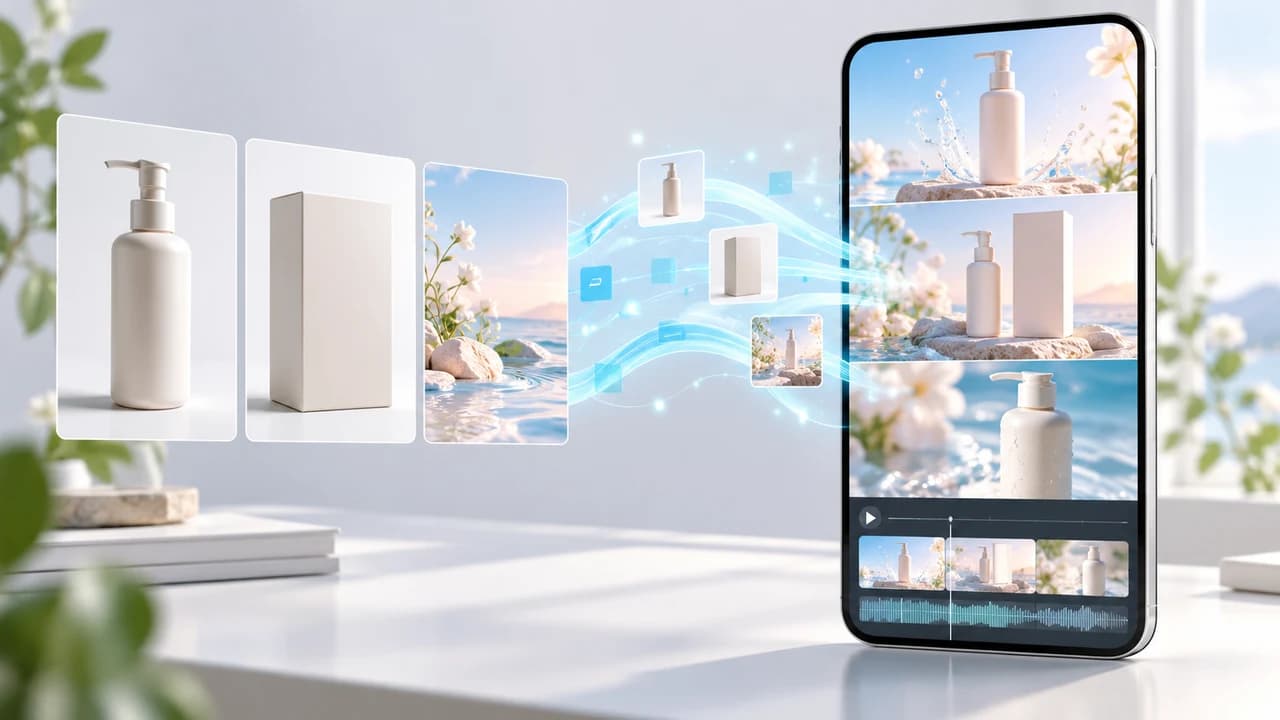
Kling 4.0 Omni Reference product video tutorial for a 9:16 three-beat teaser using approved brand assets.
What this Kling 4.0 exercise makes
Kling 4.0 Omni Reference product video tutorial readers will build one 10-second, 9:16 product teaser from three assets they are authorized to use: a clean product hero photograph, a packaging or detail photograph, and a scene reference. The edit has three beats: sealed package, reveal, and a close view of the product in use. Keep the generated frame free of sales copy so the final title and call to action can be added accurately in an editor. This is a manageable test for a social campaign, rather than a promise that the model will reproduce every label or physical detail.
Kling AI published its Kling 4.0 User Guide on October 26, 2026. The guide documents Omni Reference, 3 to 30-second generation, 9:16 output, and automatic asset labels such as @Image1. Kling's official quickstart index also lists that guide as the current 4.0 manual. Both pages were checked on October 27, 2026. The manual warns that features and parameters are subject to the live interface, so confirm the model, controls, credit charge, and download terms in your own account before submitting.
This workflow was reconstructed from those public documents. We did not submit a paid Kling generation or judge output quality, so examples below are production instructions and QA criteria, not a Steven Video Production case study. If you need a producer to prepare references, supervise iterations, and finish the edit, our Vancouver AI video production service covers that broader workflow.
Prepare three references with clear rights and separate jobs
Start with assets that have a documented source. Use your own product photograph or a client-approved file for @Image1. Use @Image2 for packaging, surface texture, or another view of the same item. Use @Image3 only for the set, lighting direction, and colour mood. Do not upload a competitor's advertisement as a shortcut to its product design, talent, music, or distinctive campaign treatment. If a person appears, confirm that the release covers AI transformation and the intended channels.
The official guide allows up to ten images within Omni Reference and up to fifteen combined references across supported asset types. More inputs can create more conflicts, so this exercise deliberately uses three. Photograph the item from a similar angle in the first two images. Remove obsolete packaging and keep one approved version of the logo. The scene image should have enough empty vertical space for the product. Save filenames that identify the role and approval date, then keep the originals outside Kling.
Write a small source-of-truth card before opening the generator. Lock the product silhouette, colour, cap or closure, visible package geometry, and any legally important marks. Treat lighting, background texture, and camera pace as flexible. Decide which claims will be added later as normal text. The model guide describes multilingual text and logo generation as capabilities, but a commercial workflow still needs exact spelling and brand geometry. Add those elements in the editor where they can be checked.
For a client teaser, use the same approved assets that will reach the final edit. A social deliverables plan should also specify 9:16 safe zones, caption placement, and platform length. Our social-media video pricing page shows production options, while this tutorial concentrates on the model setup.
Open Omni Reference and map every uploaded asset
Open Kling's 4.0 video workspace and sign in. Confirm that the model selector actually shows Kling 4.0 for your account. In the creation workspace, choose Omni Reference, which the manual identifies as the default entry for mixed image, video, and voice references. Do not switch to the separate Keyframes entry for this lesson. Kling says the two entry points cannot be combined in one generation task.
Upload the three images. The guide says Kling numbers references in upload order, for example @Image1 and @Image2. Check each thumbnail before writing the prompt because a wrong number changes the asset's job. Map them in plain language: @Image1 defines the product shape and colour; @Image2 defines the approved packaging and detail; @Image3 defines only the pale studio set and light direction. State what each image contributes instead of leaving the model to infer it.
Choose 9:16 and set 10 seconds. Select an available resolution after reviewing the displayed credit cost. The public manual lists 720p, 1080p, and 4K for the full model, but availability, price, watermark status, and downloads can depend on the account and current offer. The public plan page says eligible users may have free image-to-video options, while advanced models, higher resolution, or watermark-free downloads may require payment. Do not purchase a plan solely because this article names a control.
Before generating, verify the three thumbnails, 9:16 ratio, 10-second duration, selected output mode, and displayed charge. Kling 4.0 Flash has different limits, so do not assume that a Flash task has the same resolution, duration, or keyframe features as the full 4.0 model.
Copy this original three-beat prompt
Paste the prompt below, then replace the asset numbers if your uploads arrived in another order. It follows the guide's documented pattern of asset roles, overall settings, timed events, and audio. The scenario and wording are original to this tutorial.
Copyable prompt @Image1 defines the product. Preserve its exact silhouette, proportions, material colour, closure, and visible surface details. @Image2 defines the approved package shape and product detail; preserve those features without importing its background. @Image3 defines only the pale studio set, soft side window light, and blue-teal accent palette; do not copy objects from it. Vertical 9:16, clean realistic tabletop photography, one continuous visual sequence. 0-3 seconds: close view of the sealed package on the table, camera locked. 3-7 seconds: the camera makes a slow quarter arc as the package opens and reveals the product, with no hands entering frame. 7-10 seconds: close product-in-use detail in the same set, with clear empty space above for a title added during editing. Keep product and package geometry stable. No subtitles and no background music. Use only quiet room tone and a subtle package sound.
The guide recommends concrete descriptions and says negative instructions should be limited because they can increase errors. It specifically identifies no subtitles and no background music as useful exclusions. That is why the prompt describes the wanted framing, light, motion, and sound directly. If an invisible opening action is physically implausible for your product, replace it with a simple cut or a camera move around an already-open package.
Click Generate only after the interface shows the intended assets and cost. Preview the complete result. The public Kling plan page documents a Generate, preview, and download sequence, but the final labels may vary. Save the chosen output with its prompt, settings, source filenames, and generation date.
Iterate one variable at a time and stop on factual errors
Review the first result against the actual product, rather than against a general feeling of polish. Pause near 0, 3, 7, and 10 seconds. Compare silhouette, package dimensions, colour, closure, label area, reflections, and the transition between beats. Then inspect the background for invented objects, copied scene elements, stray text, duplicate products, or a change in lighting direction. Listen for unwanted music, speech, or a sound that implies an action the picture does not show.
If the object changes during the reveal, simplify the motion before adding more instructions. Keep the package closed throughout and use a camera arc, or start with it open. If @Image3 leaks furniture or props into the set, rewrite its role as lighting and colour only. If the product becomes too small, ask for a tighter medium close shot while retaining the 9:16 safe area. If one reference conflicts with another, remove the weaker one and rerun a cheaper draft setting where available. Change one variable per attempt and record the result.
Set a stop rule before spending credits. Two or three failed attempts at the same factual requirement should trigger another method: use the approved still with an editor-controlled push, composite the real package over a generated background, or film the reveal. A product teaser that shows the wrong closure or an unreadable invented claim is unusable even when its camera move looks smooth.
Kling's manual presents stable references and text as vendor capabilities. Treat them as functions to evaluate with your assets, not guaranteed outcomes. We did not perform this generation, and the cover image is an illustration. Accurate commercial work still needs a named reviewer who can reject a visually appealing but incorrect clip.
Download, finish the social edit, and run QA
Download only the candidate that passes the reference check, subject to the options shown in your account. Keep the original output before grading or resizing. In your editing software, add the verified logo, offer, subtitle, and call to action as normal layers. Build a clean audio bed from licensed music and approved sound, then mix it for the destination platform. If Kling generated useful room tone, confirm that your account terms and project approvals allow you to keep it.
Use an export checklist. Confirm a 9:16 sequence, the required pixel dimensions and frame rate, readable title-safe copy, correct product colour, clean first and last frames, no unintended people or marks, and no abrupt audio cut. Watch once at normal speed with headphones, once muted for visual artifacts, and once on a phone at typical brightness. Compare the exported file with the approved product photo again because compression and captions can hide important detail. Make a separate proof for each language instead of swapping copy after approval.
Keep a small delivery record containing source permissions, the final prompt, generation settings, selected output, rejected reasons, editor project, music licence, and approval email. Label generated footage internally so it is not confused with a real product demonstration. Do not use a generated action to claim a feature the product does not have.
If you want help turning an approved concept into a finished social campaign, contact Steven Video Production with the product files, intended platform, deadline, and details that must remain exact. We can scope reference capture, generation supervision, real filming, editing, bilingual versions, and delivery without forcing every shot through AI.
Frequently Asked Questions
What is Kling 4.0 Omni Reference?
It is Kling 4.0's creation entry for combining prompts with supported image, video, element, and voice references. The official guide says each asset should receive a specific role in the prompt.
How many references can Kling 4.0 Omni Reference use?
The October 26 official guide lists up to 15 combined assets, including up to 10 images and five videos within additional type-specific limits. Use only the references that clarify the task.
Can Kling 4.0 make a 9:16 product video?
The official guide lists 9:16 for the full 4.0 model. Confirm that ratio, the model, duration, resolution, credit cost, and download conditions in your live account before generating.
Is Kling 4.0 free to use?
Kling's public plan page says eligible users may receive free image-to-video options. Advanced models, higher resolutions, or watermark-free downloads may require payment, and account offers can change.
How do I stop Kling from changing my product?
Assign every reference a narrow role, describe locked geometry directly, simplify movement, and compare every result with the approved photograph. Use compositing or real footage if a required detail still changes.
Should I add logos and ad copy inside Kling?
For commercial delivery, add exact logos, claims, prices, and calls to action in an editor where spelling, geometry, timing, and approval can be controlled.
Ready to start your project?
Get in touch for a free consultation. I typically respond within a few hours.