
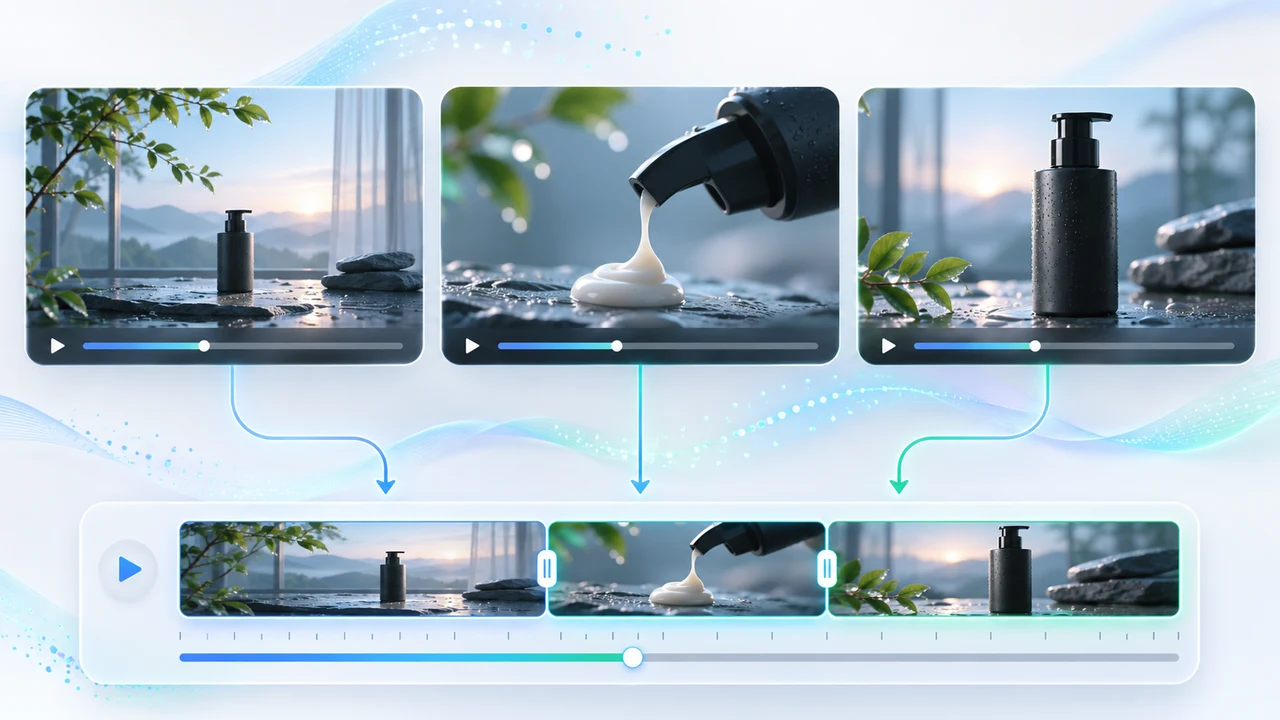
Google Flow Scenebuilder tutorial for assembling and reviewing a coherent three-shot brand video.
What this Google Flow Scenebuilder tutorial delivers
Google Flow Scenebuilder tutorial readers will assemble a coherent 18–24 second product-launch sequence from three separately approved clips: an establishing shot, a macro product action, and a final bottle reveal. The measurable deliverable is one ordered, trimmed, previewed, and downloaded scene plus a shot-level QA record. Scenebuilder is useful for sequencing; it is not presented here as a full non-linear editor or a one-click continuity system.
Google's official edit and build scenes guide documents that Scenebuilder can arrange multiple clips, reorder them, trim each clip's beginning and end, preview the sequence, and download a scene. The same page gives the current More > Add to Scene path. Google's video creation guide documents the standard prompt box, Video model selection, aspect ratio, output count, generation length, Ingredients, and Frames. Both pages are undated and were checked November 12, 2026.
Flow is currently available to users 18+ in Canada. Google's availability page lists English, Simplified Chinese, and Traditional Chinese, while recommending English prompts for best results. This article did not sign in or submit a generation, so interface and output claims are attributed to Google rather than described as Steven Video Production test results. Confirm the current controls, credits, rights, and plan in the signed-in account. For a managed hybrid workflow, see AI video production in Vancouver.
Prepare one reference pack and a three-shot continuity brief
Start with one rights-cleared product reference on a plain or segmented background. Google's creation guide recommends clean Ingredients and warns against conflicting visual and text guidance. For this original example, use a matte-black skincare bottle with an approved blank label area, wet slate, cool dawn window light, and a restrained luxury palette. Keep the real label artwork, legal copy, logo, and final typography outside generation so they can be applied accurately in the editor. Save the approved source, licence or ownership record, palette values, aspect ratio, and a simple continuity sheet before spending credits.
Give each shot one editorial job. Shot 1, 6–8 seconds: establish bottle, surface, and light direction with a slow push-in. Shot 2, 4–6 seconds: show one serum drop landing on glass in macro view. Shot 3, 6–8 seconds: return to the bottle for a restrained reveal. Lock the same orientation, product reference, background family, colour temperature, and screen direction. Scenebuilder can order clips, but it cannot rescue a bottle that changes shape or a key light that jumps sides.
Copy this shot brief into the production notes: Create three separate 16:9 product-film clips using the same approved bottle reference and cool dawn palette. Preserve bottle proportions, cap, blank label area, wet-slate surface, left-to-right light direction, and restrained camera speed. No extra products, hands, text, logos, dialogue, or music. Shot 1 establishes location; Shot 2 shows one macro action; Shot 3 returns to the hero product and leaves a clean final frame for approved graphics. Treat this as the human continuity contract. Flow's standard interface uses a prompt per generation rather than one Scenebuilder prompt that fixes all three clips.
Generate three source clips with current Flow controls
Open Google Flow and start or open one project. In the standard prompt box, click the current model name, choose Video, then select the model, aspect ratio, number of outputs, and generation length shown by the account. Add the approved bottle through Video > Ingredients or the Add control. Use the same reference and settings for all three generations. Google's current help page identifies Veo 3.1 Lite and Omni Flash 1.2 in the live credit system; do not follow older tutorials that assume Veo 3.1 Fast, Veo 3.1 Quality, or Omni Flash 1.1 will remain available after their documented December 5, 2026 retirement.
Use one bounded prompt per clip. Shot 1: `slow tabletop push-in, matte black skincare bottle on wet slate, cool dawn window light from camera left, restrained luxury commercial, preserve exact bottle proportions and blank label area, no text, no hands`. Shot 2: `macro view of one clear serum drop landing on glass beside the same matte black bottle, soft side light from camera left, same cool dawn palette, locked composition, no text`. Shot 3: `same matte black bottle rotates ten degrees as a narrow rim light reveals its silhouette, locked camera, same wet slate and cool dawn background, preserve cap and blank label area, no text`.
Google's credit page, undated and checked November 12, states that every account receives 50 daily Flow credits; Plus, Pro, and Ultra plans add monthly credits. It currently lists Veo 3.1 Lite at 10 credits per 4-, 6-, or 8-second generation for most users and 5 for Ultra, while Omni Flash 1.2 is charged per second and resolution. Costs can change, and one request may create multiple generations. Record the pre-generation total and generate one candidate per shot before requesting alternatives.
Add, order, trim, preview, and download the scene
Approve clips individually before sequencing. Reject extra caps, unstable labels, duplicated bottles, sudden camera acceleration, incorrect light direction, or unwanted text. Then hover over Shot 1, open More, and choose Add to Scene. Repeat for Shots 2 and 3. Open the scene and drag clips into the intended order: establishing view, macro action, final reveal. Google's current help page explicitly documents adding and rearranging this way; the same page says Scenebuilder provides start/end trim handles, full-sequence preview, and scene download.
Trim dead frames, not useful action. Shot 1 should settle on the product before the cut. Shot 2 should enter close enough to the serum action that the viewer immediately understands the scale change, then leave before the drop becomes visually static. Shot 3 should preserve a clean final frame long enough for approved graphics to be added later. Preview the sequence at normal speed, then scrub each cut frame by frame. Scenebuilder does not document cross-dissolves, audio mixing, captions, colour matching, or layer-based compositing on this page; plan those tasks in a local editor rather than inventing controls.
Use the scene download only after the order and trim pass are accepted. The help article does not publish a fixed scene-download codec, frame rate, or resolution, so inspect the file actually delivered to the signed-in account instead of promising a universal spec. Keep each approved source clip as well as the downloaded scene. If a previous edited version is needed, Google's guide places versions and prompts in the asset's History panel and provides Save to Project before adding that version to Scenebuilder. For campaign scope and downstream finishing, review promotional video pricing.
Troubleshoot continuity without wasting generations
Name the failure before changing anything. If the bottle shape drifts, return to the cleanest reference, simplify the prompt, and remove style words that conflict with the image. If the palette changes, repeat the same light direction and colour language rather than adding more adjectives. If Shot 2 feels unrelated, retain the bottle edge or wet-slate texture in frame so the macro cut has a visual bridge. If camera direction jumps, regenerate only the failed shot with an explicit locked camera or matching movement. Do not regenerate all three clips because one cut is weak.
Text and labels require a strict stop rule. If generated lettering is wrong, do not spend repeated credits trying to repair typography. Keep the label area blank and add approved vector artwork later. If product geometry remains unstable after one constrained retry, use a real filmed pack shot, a still-image motion treatment, or a simpler AI insert. A coherent hybrid sequence is more useful than three fully generated clips that misrepresent the product.
Keep a compact decision log with shot number, model, duration, aspect ratio, reference filename, prompt version, displayed cost, output ID, rejection reason, trim points, and accepted version. Google says unused daily credits do not roll over, but that is not a reason to generate without a brief. Peak-hour access can also be limited for non-subscribers. The practical limit is quality and review time, not merely the available balance. Use one controlled retry per failure class, then move to a local edit or reshoot plan. This keeps claims, product identity, and cost visible to the client.
Finish in an editor and run brand-video QA
Import the downloaded scene and individual clips into a local editor. Confirm the scene file's actual resolution, frame rate, codec, audio state, and duration. Replace any weak Scenebuilder cut with the approved source clip if needed, then apply measured colour matching, licensed sound, approved label and logo artwork, captions, and final delivery encoding. Do not claim Scenebuilder created these downstream elements. Keep a clean no-text version, a client review file, and the final platform master.
Run three passes. Continuity QA: bottle proportions, cap, blank label placement, wet-slate texture, palette, light direction, reflections, camera direction, movement speed, and cut rhythm. Integrity QA: no invented claims, extra products, malformed text, unauthorized people, copied vendor assets, or misleading demonstrations. Delivery QA: actual dimensions, frame rate, duration, first and last frame, compression, sound rights, logo accuracy, safe area, mobile playback, desktop playback, filename, and approval status. Watch once without sound to inspect cuts and once with the final mix.
Archive the reference pack, prompts, account and plan note, model names, displayed credit totals, output IDs, rejected reasons, Scenebuilder order, trim decisions, downloaded scene, individual clips, editor project, licences, review notes, and final approval. The paired Chinese Google Flow Scenebuilder tutorial follows the same verified path with a Chinese production checklist. If a product launch needs approved live-action footage, controlled AI inserts, sound, graphics, and client-ready versions, contact Steven Video Production with the product rights, shot list, target platforms, deadline, and approval process.
Frequently Asked Questions
What can Google Flow Scenebuilder do?
Google currently documents clip sequencing, reordering, start/end trimming, full-scene preview, and scene download. It is not documented as a full replacement for an NLE.
Is Google Flow available in Canada?
Yes. Google currently lists Canada for users age 18+, and supports English plus Simplified and Traditional Chinese. It recommends English prompts for best results.
How many credits does a three-shot Flow video use?
It depends on model, duration, resolution, plan, output count, and retries. Veo 3.1 Lite currently costs 10 credits per generation for most users or 5 for Ultra; verify the live total.
Does Scenebuilder make transitions and mix audio?
The cited Scenebuilder page documents ordering, trimming, preview, and download, not full transitions or audio mixing. Finish colour, sound, graphics, and delivery in an editor.
Can Scenebuilder keep a product identical across clips?
It can arrange the clips, but consistency depends on clean references, matching prompts and settings, selection, and human QA. Reject or replace any shot that changes the product.
Ready to start your project?
Get in touch for a free consultation. I typically respond within a few hours.