
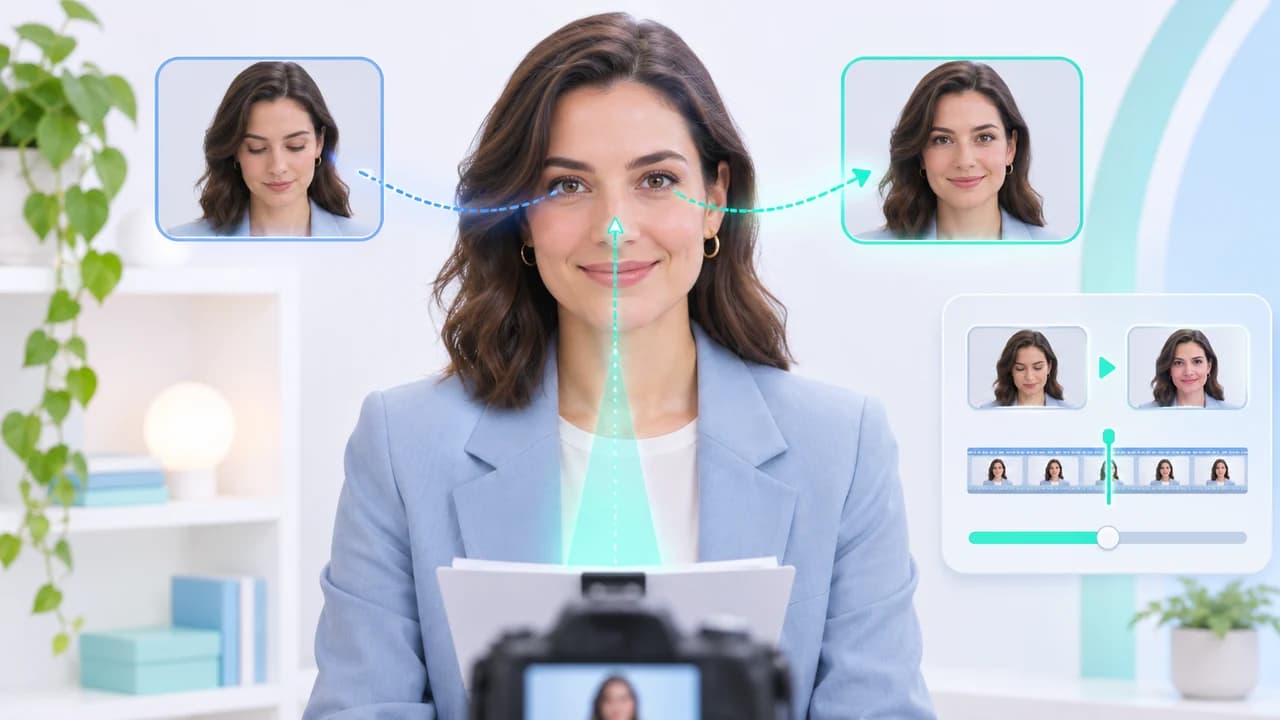
Descript Eye Contact tutorial for correcting a scripted product introduction while keeping the real take.
What this Descript Eye Contact tutorial fixes
Descript Eye Contact tutorial readers will correct one bounded problem: a presenter delivers a 20–30 second product introduction while checking notes placed just below the lens, so the words are usable but the gaze feels disconnected. The intended output is one corrected corporate or social cut plus the untouched original take. It is not a synthetic spokesperson, a replacement performance, or permission to change what the presenter actually said.
Descript's official Eye Contact help page documents the current path through Scene Editor, video layer, Effects, and Eye Contact, along with online processing and failure conditions. The undated page was checked November 5, 2026. Descript's current AI Eye Contact product walkthrough, also checked November 5, describes a non-destructive toggle, preview, and export workflow. The help page names the feature Eye Contact but does not publish a model number or app build, so this article does not invent one.
No Descript application was found in the standard application index on this Mac, and no signed-in account, AI-credit charge, or export was run. The sequence below is reconstructed from live official documentation, not presented as a Steven Video Production quality test. Confirm the visible controls, plan, displayed credit use, and export options in your own account before using client media. For a wider workflow that combines real filming with bounded AI corrections, see AI video production in Vancouver.
Record a source that gives the effect a fair chance
Eye Contact works best when the correction is small. Use one presenter, a medium close-up, a front-facing camera, and soft light that keeps both eyes visible. Put the script or notes only a few degrees below the lens rather than on a laptop far off-axis. Descript says large gaze offsets, extreme side angles, full head turns, multiple people, sideways video, glasses glare, and a face that is too small can prevent the effect from applying or make it look unnatural. Keep the source correctly oriented before import and stay online during processing.
Use this original, copyable production brief for a fictional skincare bottle: 20–30 seconds; one presenter centered from mid-chest up; notes directly below the lens; constant frame rate; soft key light angled to avoid glasses glare; three sentences covering the product name, one verified feature, and one next action; pause naturally between sentences; no claims that are absent from the approved script. The feature is a toggle effect, not a text-prompt workflow, so do not look for a prompt box or paste this brief into an undocumented control. It guides the shoot.
Record at least two real takes. On the first, ask the presenter to speak naturally while using the near-lens notes. On the second, shorten the script and encourage more direct lens contact. The second take is the honest fallback if correction fails. Keep the original camera file, consent record, approved wording, and product-claim source together. Eye direction can be adjusted; factual accuracy, endorsement scope, and performance approval still belong to the real production team.
Apply Eye Contact through the documented interface
Start a Descript project and import the correctly oriented source. In Scene Editor, select the presenter's video layer. Open the hover menu's Effects tab and choose Eye Contact. Descript also documents selecting a layer on the timeline and toggling the effect from the Properties panel in the sidebar. Keep the app online while processing. When the result is ready, preview the complete corrected section and toggle Eye Contact off and on to compare it with the real take. Because the effect is non-destructive, the original remains available.
This uses AI Credits on Descript's current plans. The official usage guide, undated and checked November 5, lists Eye Contact among credit-consuming tools, says allowances reset each billing cycle, and says unused credits do not roll over. Manual AI-effect cost scales with job size; the Usage tab records actual consumption. The public product page currently lists Free with 100 monthly AI credits and 720p export, Hobbyist with 400 credits and 1080p, and Creator with 800 credits and 4K. Prices and entitlements can change, so treat the signed-in interface as authoritative.
The checked help page states no country-specific availability rule. That is not proof of universal access. Confirm that the effect appears in the Canadian or other regional account you will use, that your Drive role can spend credits, and that the client permits cloud processing. If the live labels or entitlement differ from the documentation, stop and record the actual state instead of guessing a replacement path.
Fix common failures without forcing the correction
If the effect does not apply, diagnose the input before spending more credits. Descript specifically identifies variable frame rate, multiple people, and eyes or face that are not clearly visible. For variable-frame-rate phone footage, open the file in HandBrake, go to the Video tab, choose Constant Framerate, export a new file, and replace the original in Descript. Reframing can help when the face is too small, but preserve enough resolution for the intended delivery. A crop that turns a 4K source into a clean 1080p close-up may be useful; enlarging a low-resolution face until it is soft will not.
For glasses glare, move or soften the key light and adjust the camera angle rather than trying to repair hidden eyes after the fact. If the presenter looks too far away from the lens, place notes closer and use the real second take. If correction skips a head turn, cut around that moment, leave it uncorrected, or use relevant product B-roll. Do not force continuous synthetic gaze across an action the documentation says is difficult.
Set a stop rule: one input correction and one reprocess attempt. If blinking, pupils, eyelid edges, or reflections still look wrong, keep the original, re-record the line, or cover the approved audio with real B-roll. A product introduction does not become better because every frame contains mathematically direct eye contact. Natural glances can support authenticity. The goal is a believable connection with the viewer, not a frozen stare or a hidden alteration that overrides the presenter's actual performance.
Review gaze continuity before you export
Watch the corrected clip at normal speed first. Check whether the gaze feels appropriate for the sentence rather than merely aimed at the lens. Then review frame by frame around every blink, pause, head turn, cut, and glasses reflection. Compare pupil direction, eyelid edges, catchlights, eyebrow movement, skin texture, and the boundary where the effect begins or stops. Toggle the effect off and on at the same timestamp. A correction should not create a new facial expression or make both eyes move as one rigid graphic.
Next review the story and product facts. Confirm that the approved product name and verified feature remain intact, the timing still feels like the presenter, and no edit removes a necessary qualifier. Eye Contact changes gaze, not script approval. Add brand logos, pricing, legal copy, captions, and calls to action as normal deterministic graphics; do not treat an AI effect as evidence for a product claim. For a social deliverable, review the 9:16 crop separately because tighter reframing can expose eye artifacts that were less visible in a 16:9 master. Social-media video pricing and deliverables can help frame the expected versions and review rounds.
Show the client a normal review file rather than a messaging-app transcode. If correction materially changes how an endorsement is perceived, disclose the use during approval and retain the source. Approval should cover both the spoken message and the modified gaze. The untouched take remains the reference if a platform recompression, crop, or later revision makes the corrected eyes look different.
Export the approved version and preserve a reversible record
Use the export resolution available under the signed-in plan and appropriate for the final platform. The current public page lists 720p for Free, 1080p for Hobbyist, and 4K for Creator, but verify the export screen on the day of delivery. Match the intended frame rate, aspect ratio, audio layout, captions, and colour handling. Export a high-quality master and the platform-specific review or social file; do not upscale a low-resolution plan export and label it native 4K.
Complete a final QA pass on a desktop display and a phone. Check runtime, first and last frames, eye direction, blinking, glasses, effect boundaries, lip sync, audio sync, captions, product spelling, logo, safe areas, compression, and filename. Compare the exported file with both the Descript preview and original take. If a vertical crop is required, inspect that exported crop rather than assuming the landscape approval carries over.
Archive the source camera file, approved script, consent, Descript project, account plan note, actual AI-credit record, corrected export, original export, captions, graphics, review comments, and final approval. The paired Chinese Descript Eye Contact tutorial uses the same sources but is written for a Chinese-speaking production workflow. If a product introduction needs filming, bilingual versions, social cutdowns, and a safe fallback rather than only gaze correction, contact Steven Video Production with the script, source format, presenter approval, delivery ratios, and deadline.
Frequently Asked Questions
Does Descript Eye Contact work with more than one person?
Descript says the effect is optimized for one clear face. Multiple people can prevent it from identifying which eyes to correct.
Why does Descript Eye Contact skip parts of a video?
Large gaze offsets, head turns, the face leaving frame, glare, poor lighting, or unclear eyes can make the effect skip sections. Reframe, relight, or use the original moment.
Does Descript Eye Contact use AI credits?
Yes. Current plans use AI Credits for Eye Contact. Check the Usage tab and the signed-in estimate because allowances and costs can change.
Can I turn Descript Eye Contact off after applying it?
Yes. Descript describes the effect as non-destructive, so it can be toggled off and the original take remains available.
Why will Eye Contact not apply to phone footage?
Variable frame rate is a documented cause. Re-encode the source to Constant Framerate in HandBrake, replace the file, and try once more.
What export resolution does Descript support?
The public page checked November 5, 2026 lists 720p on Free, 1080p on Hobbyist, and 4K on Creator. Verify the live plan and export screen before delivery.
Ready to start your project?
Get in touch for a free consultation. I typically respond within a few hours.