
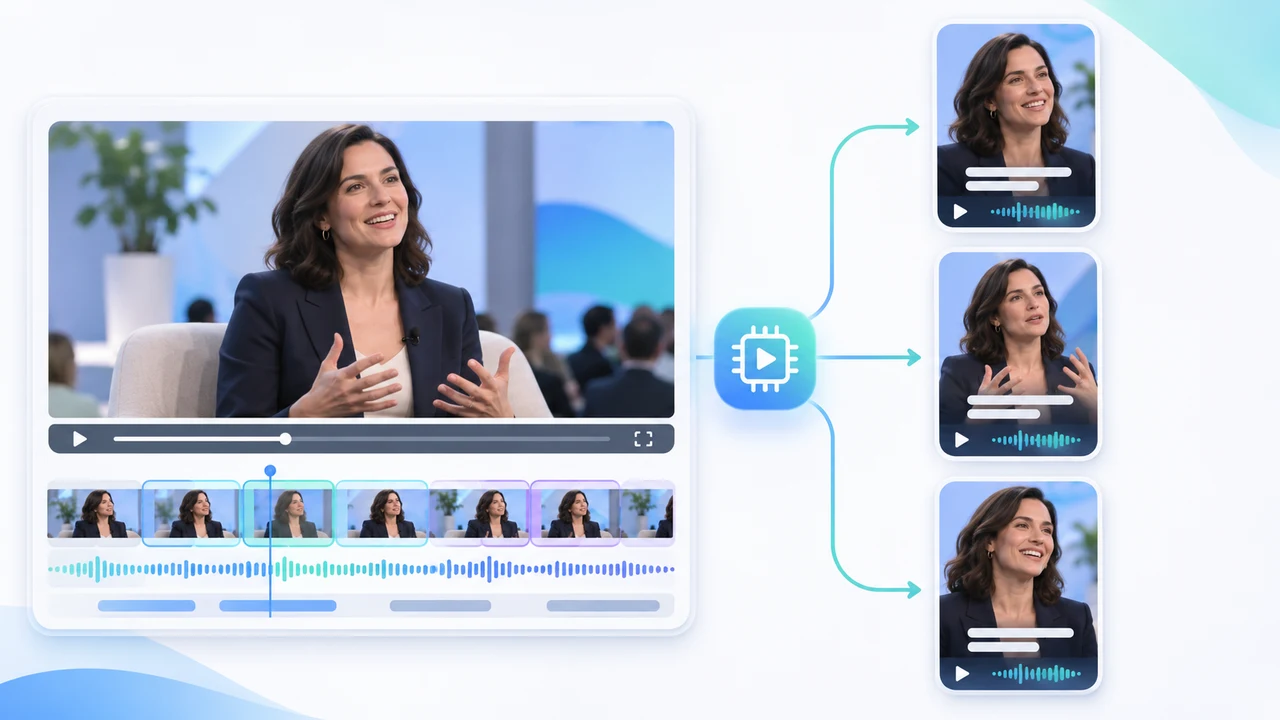
CapCut long video to shorts tutorial for making three reviewed vertical clips from one event interview.
What this CapCut long video to shorts tutorial delivers
CapCut long video to shorts tutorial readers will start with one permission-cleared, 12-minute event interview and finish with three reviewed 9:16 candidates, each 30–60 seconds long. The three clips should cover a different complete idea: the event's main problem, one concrete lesson, and the next action. A clip only passes when it makes sense without hearing the interviewer's question. AI selection is a starting point, not editorial approval.
CapCut's official Transform Long Video to Short Clips page documents the current web sequence: upload from local storage, CapCut Cloud, Google Drive, or Dropbox; choose duration and times; generate candidates; preview each clip; select Edit more; then export. The page is undated and was checked November 6, 2026. CapCut's dated 2026 long-video-to-shorts guide, published February 12, 2026 and rechecked the same day, confirms the Long Video to Shorts web route and the preview, edit, caption, and export workflow.
The public tool and editor route were reachable from Canada on the check date, but no signed-in CapCut account, client upload, AI generation, paid plan, or export was used for this article. This workflow is reconstructed from current official documentation, not presented as a Steven Video Production speed or quality test. Regional access, account limits, paid features, watermark rules, and export options can change; verify the controls shown in your own account before uploading client media. For the filming side of the project, see event videography in Vancouver.
Prepare the interview and a copyable selection brief
Use the highest-quality interview master you are allowed to upload. Before CapCut sees it, confirm speaker consent, event-release scope, sponsor restrictions, music rights, confidential remarks, and the intended platforms. Remove pre-roll, long breaks, private attendee conversations, and anything that should never leave local storage. Keep the untouched camera and audio masters outside the cloud project. If the interview contains unreleased business information, use a locally approved workflow instead of assuming a public AI editor is permitted.
Prepare a clean 16:9 source with understandable dialogue and a stable audio track. A mixed programme file is acceptable for candidate selection, but a clean interview stem makes caption review easier. Add temporary room tone only where it preserves natural pauses; do not fill every silence. Write down the speaker's correct name, title, company, product terms, Cantonese or Mandarin names, and any approved spelling before generating captions. This reference sheet is more reliable than correcting the same proper noun three times later.
Copy this original selection brief into your production notes: Find self-contained answers about (1) the event's main problem, (2) one concrete lesson, and (3) the next action. Each clip must make sense without the interviewer's question. Avoid greetings, sponsor claims, private attendee details, unsupported numbers, and answers that depend on missing context. Keep one complete sentence before and after the central idea available for manual trimming. CapCut's public page documents duration and time controls but does not clearly promise a free-text instruction field for every account, so use this as an editorial checklist unless your live interface explicitly provides one. Do not invent a prompt box.
Follow the current CapCut Web sequence
Open CapCut Web's Long Video to Shorts tool and sign into the account approved for the project. Upload the interview from the local device, CapCut Cloud, Google Drive, or Dropbox. CapCut specifically says to keep the page open during upload. Use a current browser and a stable connection, and do not let the laptop sleep. If the source is a large 4K event master but the interview itself is a locked 1080p frame, make a high-quality upload proxy first and retain the original for the final conform.
After upload, choose the desired clip duration and any specific time range shown in the interface. For this exercise, target three 30–60 second candidates rather than asking for dozens of fragments. Start generation and wait for the cloud analysis. The product page says the tool identifies moments from visuals, audio, and context and can add captions; those are CapCut capability claims, not a guarantee that it understands a speaker's legal qualifier, event context, or best sales message.
Preview every generated candidate from start to finish. Reject clips that begin mid-thought, hide the subject of a sentence, remove a necessary qualifier, repeat the same idea, or depend on a question the viewer cannot hear. For a promising candidate, choose Edit more. In the editor, trim the true sentence boundary, restore any missing setup, set a real 9:16 canvas, reframe the speaker, correct captions, and add only approved graphics and music. The exact account may expose different templates or Pro controls. Record the actual labels, plan, and feature availability rather than assuming every screenshot in a marketing page matches your workspace.
Turn three AI candidates into complete vertical stories
Give each clip one editorial job. Clip one can state the event's central problem and why it matters. Clip two can deliver one specific lesson with enough evidence to stand alone. Clip three can end with an approved next step. Do not create three versions of the same attractive sentence. Write a one-line purpose above each timeline, then remove any sentence that does not support it. A 35-second complete answer is stronger than a 20-second fragment with no subject.
Set the canvas to 9:16 and review the crop shot by shot. Keep the speaker's eyes in a stable upper-third area while leaving safe space for captions and platform controls. If the interview uses a two-shot, slides, a sign-language interpreter, or a product demonstration, a simple centre crop may destroy meaning. Use keyframed reframing, a designed split layout, or a short approved B-roll insert. Never crop out the interviewer and then leave the speaker pointing toward an invisible person without context.
Correct captions against the source audio, not against what the AI probably meant. Check names, job titles, event names, product terms, numbers, dates, negation, acronyms, Chinese characters, and code-switching. Break lines at natural phrases and keep them clear of faces, logos, and mobile UI. If a bilingual interview changes language mid-sentence, decide whether the final audience needs original-language captions, translated subtitles, or both; do not silently replace the speaker's words. Add the real logo, CTA, sponsor mark, and legal qualifier from approved assets. For expected deliverables and revision rounds, review social-media video pricing.
Troubleshoot generation, captions, and reframing
If the page remains in Thinking…, use CapCut's dated AI troubleshooting guide, published January 5, 2026 and checked November 6. It says the status belongs to cloud AI operations and that delays beyond roughly 60–90 seconds can come from browser extensions, an inactive tab, large uploads, network instability, server load, or input complexity. On web, CapCut recommends current Chrome, disabling interfering extensions, keeping the tab active, pre-compressing oversized media, and copying the auto-saved project URL before refreshing. The guide says to refresh after more than two minutes, not to keep blind retries running indefinitely.
If the selected moments are weak, narrow the time range to one answer and generate once more, or stop using automatic selection and cut manually. If a clip starts too late, restore the subject and context in Edit more. If captions repeatedly miss a name, correct the transcript manually and compare every appearance. If the 9:16 crop cuts hands, slides, or products, use a wider designed layout instead of forcing face tracking. If music rights are unclear, remove the track and use licensed audio later.
Use a stop rule: one constrained regeneration for selection, then manual editing. Repeated generation cannot repair an interview that lacks a complete answer, clean audio, consent, or factual clarity. It can also create more review work than it saves. Keep a manual fallback sequence that uses the original 16:9 interview, human-selected in/out points, verified captions, and intentional reframing. The useful automation is candidate discovery; the accountable work remains story, facts, rights, crop, captions, and final approval.
Export, run QA, and keep a reversible record
Export only after the candidate passes story and visual review. Use the resolution, frame rate, codec, audio settings, and watermark state displayed by the signed-in account; the public page offers a free online entry point, but this article does not claim that every account can export every feature free or without a watermark. For most social delivery, build a true 1080×1920 file when the account and source support it, rather than exporting landscape and relying on the platform to crop. Keep a higher-quality review or master file when the platform copy will be heavily compressed.
Watch each export on a desktop and a phone. Confirm the hook, complete thought, speaker identity, factual qualifiers, caption spelling and timing, 9:16 crop, eye line, hand and product visibility, logo, CTA, sponsor rules, music licence, loudness, lip sync, first and last frame, duration, and filename. Check that no private attendee appears in B-roll and that the clip does not imply a different answer because the question was removed. Upload a private platform test when safe areas or compression matter, then compare it with the master.
Archive the interview master, consent and event terms, upload proxy, CapCut project URL, account and plan note, actual feature state, generated candidates, rejected reasons, corrected captions, graphic sources, music licence, exports, and approval. The paired Chinese CapCut tutorial follows the same verified sources with a Chinese-language review workflow. If a real event interview needs filming, story selection, bilingual captions, vertical versions, and client-ready approval files, contact Steven Video Production with the source length, languages, rights, platforms, deadline, and required number of clips.
Frequently Asked Questions
Can CapCut automatically turn a long interview into several shorts?
CapCut documents AI candidate generation from a long video, with duration controls, captions, preview, Edit more, and export. Human review is still required for complete meaning, rights, framing, and facts.
Is CapCut Long Video to Shorts free and watermark-free?
The public page offers a free online entry point, but plan, region, feature, and watermark rules can change. Verify the signed-in export screen before promising a deliverable.
What length should an event interview short be?
For this workflow, use 30–60 seconds as a working range, then keep the shortest version that still contains the subject, context, complete answer, and approved CTA.
Why is CapCut stuck on Thinking?
CapCut lists inactive tabs, browser extensions, unstable networks, large uploads, server load, and input complexity. Keep the tab active, use current Chrome, save the project URL, and retry once after diagnosing the cause.
Does CapCut check caption accuracy automatically?
It can generate captions, but names, numbers, negation, bilingual speech, and technical terms must be checked against the source audio by a person.
Can I upload a client event interview to CapCut?
Only if the speaker release, client agreement, privacy rules, and organizational cloud policy allow it. Remove restricted material and keep the untouched master outside the cloud project.
Ready to start your project?
Get in touch for a free consultation. I typically respond within a few hours.