
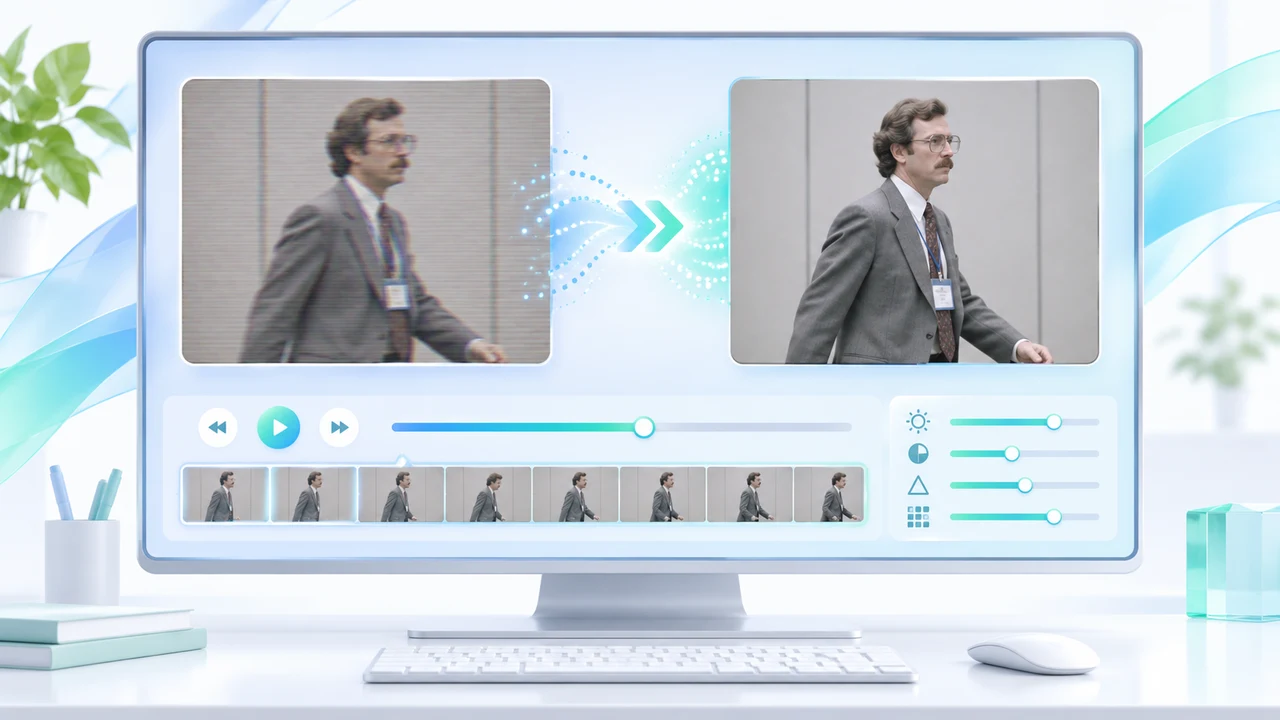
Topaz Starlight Mini 1.7.0 tutorial for restoring a 10-second SD event clip with controlled QA.
What this Topaz Starlight Mini 1.7.0 tutorial restores
Topaz Starlight Mini 1.7.0 tutorial readers will prepare one permission-cleared, 10-second standard-definition event clip, deinterlace it when necessary, and export a short restoration test at 720p or higher while preserving the source aspect ratio. The fictional example is a 4:3 mini-DV conference entrance shot: one person walks past a plain wall and a small event sign. That combination gives us moving edges, a face, a flat background, and small lettering to inspect without pretending that a whole archive can be repaired by one preset.
The primary source is Topaz Labs' official Starlight Mini documentation and Quick Start, which includes the 1.7.0 update, model download path, output rules, hardware requirements, and warnings. The broader Getting Started with Topaz Video tutorial, published February 20, 2026, documents import, Enhancement, Codec Settings, and export controls. The current system-requirements and cloud-rendering pages are undated; all four official pages were checked November 4, 2026.
No Topaz application was found in the standard application index on this Mac, and no Topaz account, model download, local render, or paid cloud job was used. The workflow below is reconstructed from current official documentation, not presented as a Steven Video Production quality test. Vendor descriptions of detail, consistency, or reduced flicker remain Topaz claims. For preservation work tied to a real conference or ceremony, keep the untouched camera master and treat the AI output as a review candidate alongside the normal event video workflow.
Prepare a ten-second source before choosing any AI model
Start from the highest-quality file you are authorized to use. Do not screen-record an old upload if the original tape capture, camera file, or mezzanine export still exists. Duplicate the source, record its filename, codec, frame size, pixel aspect ratio, frame rate, field order, audio layout, and known rights, then choose a representative 10-second section. The section should contain the defects you actually need to judge, not the cleanest moment in the reel. Our example includes a walking subject, a wall, and a small sign so one test can reveal edge tearing, face invention, background flicker, and incorrect letters.
Determine whether the source is progressive, truly interlaced, or interlaced material that was previously transcoded into progressive frames. Topaz's current Enhancement guide distinguishes Progressive, Interlaced, and Interlaced Progressive video types. The Starlight page specifically recommends deinterlacing interlaced footage before Starlight. For mini-DV, Topaz identifies Dione DV as a deinterlacing option; Dione TV targets analog television, camcorder, DVD, and other SD material. Field order still matters, so inspect motion rather than selecting a label from the filename alone.
Make deinterlacing a separate, documented pass when it is needed. Export that pass, check combing and motion cadence, and use the resulting progressive file as the Starlight source. Do not stack Starlight with another enhancement in the same pass: Topaz says Starlight Mini must run alone. Keep the original, deinterlaced intermediate, and Starlight test as separate files. If the sign, face, or motion already looks damaged after deinterlacing, correct that stage before spending hours or cloud credits on enhancement.
Check local hardware, licence, cloud credits, and OS risk first
Topaz Video 1.7.0 removed the previous Pro-account requirement for local Starlight Mini, but that does not make every computer compatible. The current Starlight requirements list macOS 15, an Apple M-series Pro, Max, or Ultra chip, and 36 GB RAM for local processing. The page also says Topaz is actively working on macOS 27 support and that some features may not function as expected. Windows local requirements include at least 32 GB system RAM; NVIDIA needs compute capability 7 or newer and 10 GB VRAM, while AMD needs 20 GB VRAM.
The publishing machine checked for this article is an Apple M2 Max MacBook Pro with 32 GB RAM on macOS 27.0.1. It falls below the current 36 GB Starlight Mini memory requirement and sits on an OS version carrying an explicit support caveat. That is why this article does not claim a local render. Meeting a general Topaz Video minimum is not enough; the Starlight series has its own higher table. If your machine is borderline, do not infer compatibility from the app launching. Compare the exact system profile with the current model-specific page.
Cloud Export is the documented alternative, but it uploads footage and uses separate cloud credits. Topaz's undated cloud-rendering guide, checked November 4, says cost varies by model, resolution, frame rate, and length; it displays the estimate before Start Export. Starlight cloud jobs are limited to 9,000 frames, and completed cloud files are retained for up to seven days. For this 10-second test, confirm permission to upload identifiable attendees, read the live credit estimate, and download promptly. Do not buy credits simply because a tutorial names the option.
Follow the documented Starlight Mini sequence
Open Topaz Video and import the progressive test file with Browse Videos, drag-and-drop, File > Import, or the documented keyboard shortcut. Choose Start from scratch so an unrelated preset does not add hidden processing. In the right-side Controls Sidebar, open Enhancement. Under Video Setup, select Progressive, then choose Starlight Mini from the model icons or List View. Topaz says it appears first in the Progressive model list. If your interface does not show those labels, record the installed build and stop rather than substituting another Starlight model.
For release 1.7.0, download Starlight Mini through Model Manager or allow the one-time download when export begins. Choose an available output resolution. The model enforces at least 1280×720 while preserving the content aspect ratio, which may add letterbox or pillarbox. Topaz recommends square-pixel input at or below 1920×1080; desktop and cloud support AV1, VP9, H.264, and H.265, while web input is H.264 MP4. This exercise preserves the 4:3 image instead of stretching it to fill 16:9.
Do not rely on Frame Preview or a single still. Topaz explicitly recommends exporting a few seconds because Preview and Frame Preview may not work with Starlight Mini. Set in/out points around a three- to ten-second representative section, check Codec Settings, and choose Export As…, Quick Export, or Cloud Export only after reading the displayed path, format, resolution, and cost. If you need another enhancement afterward, enable Re-import export as source and make that a second pass. The original Starlight pass should remain available for comparison. Starlight Mini has no text-prompt field; the control comes from source preparation, model selection, resolution, and human review.
Judge motion and factual detail, not just a sharp still
Compare the same section at normal speed, half speed, and frame by frame. At 100% view, inspect the walking subject's face, hairline, hands, shoe edges, clothing texture, and contact with the floor. Then inspect the wall for flicker, banding, crawling texture, or a new haze that changes from frame to frame. Look at the event sign one letter at a time. Topaz warns that small, blurry, or inconsistent text may be interpreted as texture and misspelled; a cleaner-looking invented word is still a failure. Water can also become smoother than the source.
Separate restoration from fabrication. Starlight may create plausible detail where the SD recording has none, but plausible is not evidence. If a face becomes more specific than the source supports, or a logo gains readable letters that were never recoverable, do not use the enhanced frame to identify a person, sponsor, product, or historical fact. Keep a side-by-side proof with synchronized frames and label which file is the original. For archive material, factual fidelity outranks the strongest apparent detail.
Classify each defect before changing the workflow. Combing or motion judder means revisit field order and deinterlacing. A pulsing wall or changing face means reject the pass rather than sharpening it again. Wrong letters mean replace the sign from a verified still only if rights and context allow, or retain the original. A stretched frame means restore the source pixel and display aspect ratios. A slow render is not itself a quality error; record actual hardware and elapsed time only after a real job. Set a stop rule: if two short tests show the same factual drift, use a conventional cleanup, a lighter model, a designed archival presentation, or the original footage.
Export an archival master and complete delivery QA
When a short test passes, decide whether the remaining archive is consistent enough to process with the same settings. A ten-second success does not prove that a 45-minute tape has identical exposure, noise, field order, edits, or damage. Split long or mixed material into documented sections. Preserve the untouched capture, deinterlaced intermediate, Starlight output, and final editorial master. Use filenames that identify source, pass, model, version, resolution, and date instead of overwriting the only restored file.
Topaz says Starlight Mini can render up to 4K, but more pixels do not guarantee more real detail. Choose the smallest deliverable that satisfies the project, preserves the 4:3 composition, and survives the intended edit. Confirm frame dimensions, display aspect ratio, frame rate, scan type, codec, colour space, audio channels, sync, duration, and first/last frames. Watch the complete export once with sound and once muted. Compare representative frames against the source, then inspect movement across cuts. If another enhancement was applied after re-import, review both passes separately so an error can be traced.
Keep a restoration log with the Topaz build, model, source profile, deinterlace method, output setting, local or cloud route, displayed credits, render time if actually measured, rejected defects, and approval. Do not describe Topaz's examples as your result. The paired Chinese Starlight Mini tutorial follows the same sources and verification boundary. For a corporate archive that will become a new brand or history film, corporate video production can combine rights review, editorial context, graphics, sound, and delivery. To scope a real test, contact Steven Video Production with a short sample, source specifications, ownership, deadline, and intended audience.
Frequently Asked Questions
Does Topaz Starlight Mini 1.7.0 require a Pro account?
Topaz says release 1.7.0 removed the Pro requirement for local Starlight Mini. Hardware, app licence, activation, model download, and cloud-credit conditions still apply.
Can Starlight Mini deinterlace mini-DV footage by itself?
Topaz recommends deinterlacing interlaced footage before Starlight. Use the correct Interlaced workflow first, export a progressive intermediate, then run Starlight Mini alone.
What Mac is required for local Starlight Mini?
The current model-specific table lists macOS 15, an Apple M-series Pro, Max, or Ultra chip, and 36 GB RAM. It also carries a macOS 27 support caveat.
Can Starlight Mini run in the cloud?
Yes. Topaz documents Cloud Export for Starlight, with separate credits and a 9,000-frame job limit. Read the estimate and confirm upload permission before submitting footage.
Why should I export a short test instead of using Frame Preview?
Topaz warns that Preview and Frame Preview may not work with Starlight Mini and recommends exporting a few seconds for evaluation. Motion review also exposes flicker and temporal errors.
Does a 4K Starlight export recover real missing detail?
Not necessarily. Higher resolution can contain AI-inferred detail. Compare faces, text, logos, motion, and flat areas with the source and reject invented factual information.
Ready to start your project?
Get in touch for a free consultation. I typically respond within a few hours.