Synthesia motion graphics tutorial: build and QA an editable four-step branded process video.
What this Synthesia motion graphics tutorial delivers
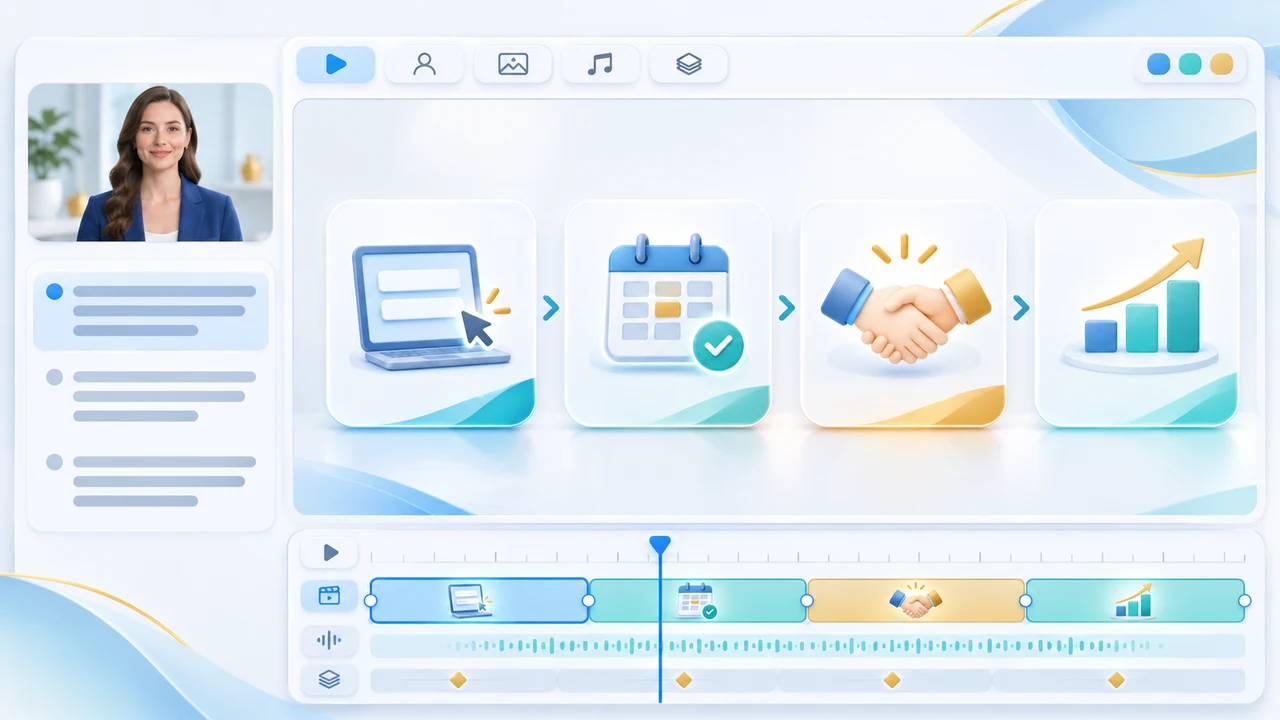
Synthesia motion graphics tutorial readers will build one editable 20-second corporate process scene: Brief, Shot Plan, Filming, and Final Delivery. The measurable outcome is a branded 16:9 graphic with four verified labels, restrained left-to-right motion, mobile-safe text, and a separately reviewed Simplified Chinese version. This is a focused production workflow, not a claim that a prompt replaces a motion designer or that a generated diagram is factually correct by default.
Synthesia’s official motion graphics help guide documents the current Editor flow and marks Motion Graphics as a beta feature. Its page metadata shows an update on November 5, 2026; it was reopened on November 19. The guide says generation is currently free and consumes no credits, but the workspace must have the Motion graphics toggle enabled. The separate workspace settings documentation lists that toggle under feature settings. If the control is missing, ask a workspace admin and check the signed-in plan rather than assuming the account is broken.
The same official guide is the operational tutorial used for this article: scene under 30 seconds, Template or Prompt, Full or Half canvas, Brand Kit or a visual style, optional references for a custom prompt, then Generate. This article applies those documented controls to a new Vancouver production journey, with an original prompt and stricter bilingual QA. No generation was run for this article. Synthesia’s outputs and marketing examples are vendor material, not StevenVideo test results. For a workflow that combines generated diagrams with interviews or real operations, see Vancouver corporate video production.
Prepare the approved facts, script, and brand inputs
Write the process before opening the generator. Limit the scene to four steps and assign one approved label, one plain-language explanation, and one visual cue to each: Brief — goals and audience; Shot Plan — scenes and approvals; Filming — camera and sound capture; Final Delivery — edit, captions, and approved files. Confirm the actual client process with the project owner. Do not let a generated timeline invent a turnaround, price, statistic, certification, or service promise.
Create a compact source sheet containing the exact English labels, approved navy and warm-gold colour values, permitted fonts, logo usage rules, safe margins, and the person responsible for factual sign-off. If you use reference images, upload only files your organization may send to a cloud service. The official guide allows up to four PNG, JPG, WEBP, or GIF references, each up to 10 MB, for the initial custom generation. Use a simple approved style board or diagram—not confidential decks, customer data, a competitor’s artwork, or a screenshot you do not have permission to transform.
Keep the spoken script and on-screen labels short. A practical 20-second structure is four seconds of setup, three seconds per step, and four seconds for the closing summary. Read it aloud before generation. If the narration cannot fit naturally, shorten the copy or split the process into two scenes; do not speed the voice until comprehension fails. Build the English source first, but prepare independently reviewed Chinese labels now: 项目简报、镜头计划、现场拍摄、最终交付. They are planning references, not evidence that the beta can translate Chinese motion graphics automatically. Save all wording in a versioned approval sheet so a later refresh cannot quietly replace approved facts.
Generate the four-step graphic in the current Editor
Open the target video and select a scene in the current Synthesia Editor. Keep that scene below 30 seconds, then choose Motion Graphics in the top navigation. Select Prompt for this custom journey, choose Full canvas for a process-led scene, and apply an approved Brand Kit or the closest permitted style. The documented alternative is Template, which is often safer when a standard timeline or checklist already fits the message. A half-canvas layout is useful only when an avatar or real footage must remain visible beside the graphic.
Copy this original prompt: Create a clean four-step horizontal client journey for a Vancouver video project: Brief, Shot Plan, Filming, Final Delivery. Use the approved navy and warm-gold palette, large legible labels, one simple icon per step, restrained left-to-right motion, generous safe margins, no stock photos, no logo, no invented statistics, and no extra stages. Attach up to four cleared references only if they add necessary brand guidance, then select Generate. Custom motion graphics are experimental, so treat the first output as a proof.
Check the hierarchy before polishing. A viewer should understand the four steps while muted, and the visual order must match the narration. Reject extra stages, changed wording, fake numbers, decorative text, confusing arrows, inaccessible contrast, or icons that imply the wrong action. If the result is structurally wrong, simplify the prompt or use a preset template rather than piling on adjectives. If the brand treatment is wrong but the structure works, keep the approved copy and use Revise with a different style or Brand Kit. Note that the current guide says Revise accepts a style and free-text prompt but does not accept new reference attachments.
Edit, refresh, revise, and build the Chinese version safely
Select the generated asset on the canvas and choose Edit, or open the design panel and enable Edit motion graphic. Synthesia currently documents editable text, font size, numbers, and colours for graphics generated after June 26, 2026. Some titles may remain locked, text elements cannot be deleted, and switching Edit motion graphic off resets the asset to its original version. Keep replacements close to the original length because longer text can overlap other elements.
Use the three controls for different problems. Edit corrects approved wording, numbers, font size, and colour without rebuilding. Refresh regenerates the graphic after the scene script or speaker changes; it does not automatically fix moment-to-moment timing. Revise changes the overall visual direction through a prompt or different style. Record which control you used and review the full scene again, because a regeneration can alter more than the one item you noticed.
Do not rely on automatic translation for this Simplified Chinese deliverable. The current help guide says translation applies only to new motion graphics, is currently limited to Latin-script languages, does not resize translated text, and does not automatically re-sync timing. Build a separate Chinese graphic if those limits remain in the live account. Use the four approved labels—项目简报、镜头计划、现场拍摄、最终交付—then have a fluent reviewer check terminology, line breaks, reading speed, and whether the animation still lands with the narration. For projects where bilingual accuracy must match interviews, captions, and stakeholder approvals, a managed AI video production workflow should preserve separate language masters instead of forcing one generated layout to serve every language.
Troubleshoot layout, timing, and factual failures
Name the failure before changing the scene. Wrong facts or labels: use Edit and compare every field with the approved source sheet. Overlapping text: shorten the wording, reduce font size carefully, or choose a roomier template; do not assume translation will auto-fit. Unclear sequence: revise to one horizontal direction and one icon per stage. Style drift: apply the correct Brand Kit or use Revise, then recheck contrast. Graphic no longer matches the script: use Refresh after the script is final. Motion feels excessive: request restrained movement or switch to a preset rather than regenerating endlessly.
Apply one controlled change per attempt. Keep a small generation log with scene version, prompt, style or Brand Kit, references, generate time, output identifier, problem, chosen control, and review result. The feature may currently consume no credits, but retries still consume production time and can introduce new errors. Set a stop rule: one initial proof, one structural revision, and one template fallback. If the layout still cannot communicate the process clearly, build the diagram manually in the editor or use conventional motion design.
Review accessibility and brand risk as production issues, not decoration. Test the scene muted, at normal playback speed, and at a smaller mobile preview. Check text contrast, safe margins, icon clarity, reading time, colour meaning, and whether motion competes with narration. Avoid rapid flashing or unnecessary movement. Verify that every number and process claim has an owner. A generated funnel or chart can look authoritative while being wrong; visual polish is not evidence. If the scene represents a regulated workflow, safety process, financial result, or customer promise, route it through the same legal and subject-matter approval as any other corporate communication.
Export, run final QA, and archive an editable master
Preview the entire video, not only the motion-graphic scene. Confirm narration, labels, motion, captions, and scene transitions remain synchronized after every edit or refresh. The official capability page says motion graphics can be exported as MP4 and used outside Synthesia. Current Synthesia pricing, checked November 19, lists downloading and logo removal on paid Starter and higher plans, while Basic carries a Synthesia watermark. Plan names, promotions, credits, and download rights can change, so verify the signed-in export controls before promising a clean client file.
Run four final QA passes. Facts: Brief, Shot Plan, Filming, and Final Delivery match the approved workflow; no invented claim or number. Design: brand colours, fonts, icon meaning, contrast, safe areas, and no unwanted logo. Timing: each label stays readable, motion follows the script, and the 20-second scene has no abrupt cut. Bilingual delivery: English and Chinese are separate reviewed versions where required, with correct terminology, line breaks, captions, voice, and timing. Export the required 16:9 master, then inspect the actual file for dimensions, duration, audio, watermark, spelling, and playback.
Archive the approved prompt, references, brand settings, English and Chinese copy sheets, generation log, Synthesia project link, exported masters, and stakeholder approval. Keep an editable project version so a future process change does not require rebuilding from a flattened video. Use this beta for bounded timelines, checklists, and process visuals that can be verified by a human. Use a motion designer or full production workflow when the message needs precise custom animation, complex data, non-Latin localization, or exact cross-platform layout. To plan a branded corporate explainer with real filming and bilingual review, contact Steven Video Production with the approved process, audience, languages, deadline, and delivery formats.
Frequently Asked Questions
Is Synthesia Motion Graphics free?
The official help guide currently says the beta is free and consumes no credits. Access still requires a Synthesia account and a workspace with the Motion graphics toggle enabled; verify the live plan and admin settings.
How long can a Synthesia motion-graphic scene be?
Synthesia recommends keeping the scene under 30 seconds for best results. Split a longer process into shorter scenes before generating.
Can I edit Synthesia motion graphics after generation?
Yes, for graphics generated after June 26, 2026. Current controls can change text, font size, numbers, and colours, although some titles are locked and text elements cannot be deleted.
Can Synthesia translate motion graphics into Chinese?
Not through the documented automatic flow at this check. The current guide says motion-graphic translation is limited to Latin-script languages and does not auto-resize text or re-sync timing. Build and review a separate Chinese graphic.
Can I export Synthesia motion graphics without a watermark?
The capability page documents MP4 export, while current pricing lists downloads and logo removal on Starter and higher plans. Basic output carries a Synthesia watermark. Confirm the signed-in entitlement before delivery.
Ready to start your project?
Get in touch for a free consultation. I typically respond within a few hours.