
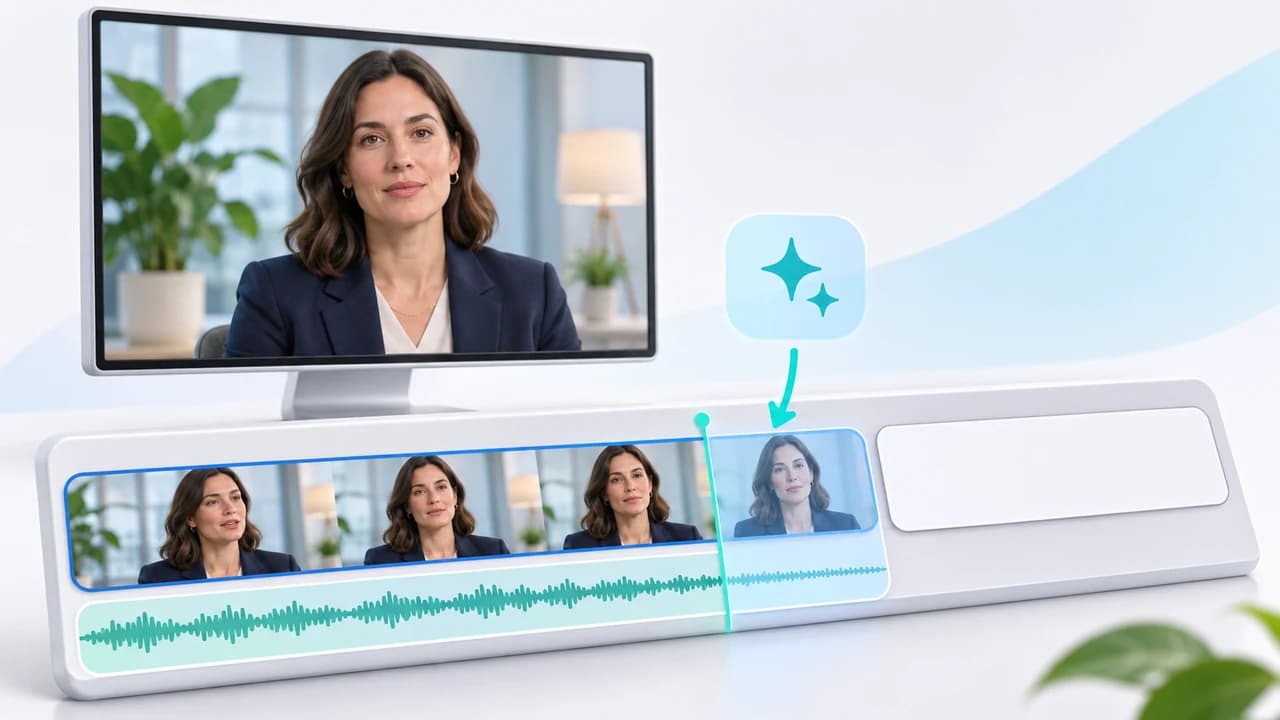
Premiere Generative Extend interview tutorial for adding a two-second reaction hold and clean room tone.
What this Premiere Generative Extend interview tutorial makes
Premiere Generative Extend interview tutorial readers will solve one small edit: an executive finishes a useful sentence, but the cut to the company logo feels abrupt. The result is a 16:9 interview outro with up to two extra seconds of a calm reaction and an extended room-tone bed, followed by a normal editor-built logo card. The generated section must not create new dialogue, rewrite the speaker's claim, or generate the logo.
Adobe's current Generative Extend overview, updated September 9, 2026, identifies the feature as Adobe Firefly-powered cloud AI inside Premiere desktop. Adobe's step-by-step page, updated November 19, 2025, documents the toolbar, drag, Regenerate, and Revert to Original sequence. Both were checked November 2, 2026. Adobe's release notes currently list Premiere 26.5.2 as the latest desktop release.
Premiere was not installed in the checked standard application paths on this machine, and no signed-in Adobe generation was run. This workflow is therefore reconstructed from the live official documentation, not presented as a Steven Video Production test or quality claim. Confirm your installed build, account entitlement, displayed credit charge, and visible controls before processing client media. For a larger interview project that includes planning, filming, and post-production, see corporate video production in Vancouver.
Prepare a clean ending before asking AI to extend it
Choose a permission-cleared corporate interview clip with a stable final moment. The speaker should finish the sentence, close their mouth naturally, and hold a neutral expression without a fast hand gesture crossing the frame. For this example, the final approved line is: “That is how the team reduced approval time.” The editing goal is not a typed prompt: extend only the clean reaction and room tone after the last word, preserve the person, background, and camera position, then add the real logo later. Generative Extend is source-driven and Adobe does not document a prompt box for this operation.
Trim the clip after the last usable phoneme while leaving enough natural facial motion for the model to read. Remove music from the selected extension area. Adobe says music is not eligible, spoken dialogue cannot be extended, and existing dialogue is muted during extension. Use a separate clean room-tone track if the interview recording contains overlapping speech, a loud chair movement, or a music bed. Video clips must be at least two seconds long; audio clips must be at least three seconds long.
Check the source against Adobe's current limits. Video may be 360p through 4K UHD, any aspect ratio, and 12–60 fps. Extensions above 30 fps are generated at 30 fps. Source can be 8-, 10-, or 16-bit and SDR or HDR, but the generated section is 8-bit SDR. Mono and stereo audio are supported; surround and 5.1 are not. Keep an untouched source master and duplicate the sequence before generation. If accurate colour turnover or HDR mastering matters, flag the SDR boundary before anyone approves the shot.
Use the documented toolbar and timeline sequence
Open the prepared sequence in Premiere desktop and verify that you are signed into an eligible Adobe account with internet access. First open Project Settings > Scratch Disks and confirm the Captured and Generated location has enough space. Adobe says each result is saved there as an H.264 MP4 or WAV and combined with the original media as a new clip in the Project panel. A predictable scratch path makes the generated element easier to archive and relink.
Select Generative Extend in the Toolbar. On the timeline, drag the end edit point of the video clip to the desired length, no more than two seconds. For room tone alone, drag the audio edge up to the documented ten-second maximum. Wait for cloud processing; the generated part appears with an AI label when it is ready. Play across the join before adding the logo card. The source clip remains unchanged, but the sequence now references generated media.
If the result fails, right-click the AI-generated label and choose Regenerate for another variation. If the approach is wrong, right-click the label and select Revert to Original. Adobe notes that Revert can be greyed out when the original media is missing, generation is still active, or linked audio and video do not belong to the same master clip. In the last case, unlink them and revert each track separately. These are documented labels as of the check date; pause if your live build uses a different path rather than guessing.
Access is not universal. Adobe says Firefly is unavailable in Russia, Belarus, and China; K–12 organizations and some enterprise CCE v3 accounts may have limited or no access. Generative Extend also consumes credits according to resolution and frame rate, so read the live estimate under your plan before submitting.
Review the generated reaction before building the logo transition
Review the extension at normal speed, then frame by frame. Start with the speaker: check eye direction, blink timing, lips, teeth, jawline, hair, ears, hands, clothing edges, jewellery, and chair contact. Next inspect the background for breathing walls, shifting practical lights, bent furniture, texture changes, or a camera move that accelerates after the real frames end. The model may attempt to continue pans, tilts, or zooms, but Adobe describes that as intended behaviour rather than a guarantee.
Listen on headphones. The transition should not repeat a consonant, create a clipped breath that sounds like a new word, change HVAC tone, or shift stereo ambience. Spoken dialogue is not generated; if the outgoing sentence needs a new word, return to the interview edit or record an approved pickup. Use the generated audio only as room tone or background sound. A simple short equal-power fade can hide a small ambience join, but it should not conceal a factual speech edit.
If the face or hands drift, shorten the requested hold and regenerate once. If the background pulses, choose an earlier, calmer edit point. If the audio join changes character, extend a separate clean room-tone clip rather than linked production audio. Set a stop rule: after one regeneration with the same identity or motion problem, use a real freeze frame with subtle scale, an alternate listening shot, approved B-roll, or a shorter fade. A two-second synthetic hold is optional; an honest conventional edit is better than a polished reaction that changes the speaker.
This human review is where AI video production support adds value: the tool supplies a candidate, while an editor protects identity, timing, brand facts, and the fallback route.
Add the real logo and export a controlled 16:9 master
Once the reaction passes review, place the approved logo card after it as a normal graphic or rendered asset. Do not ask Generative Extend to invent the company mark, claim, URL, or legal line. Create the fade in Premiere so text geometry and duration remain deterministic. For this exercise, let the reaction settle, fade picture and room tone, then bring in the verified logo card with an approved music sting or silence. Keep the generated hold clearly separated from factual copy.
Before export, confirm the sequence format and colour pipeline. Because the extension is 8-bit SDR even when the source is HDR or higher bit depth, inspect scopes and a calibrated SDR output. Do not quietly insert it into an HDR master and assume the turnover remains homogeneous. Export a review file using the client's agreed 16:9 dimensions, frame rate, codec, audio layout, and loudness target. Keep a high-quality master and a smaller review copy rather than approving from a messaging-app transcode.
Run a final QA pass at normal speed with headphones, muted frame-by-frame, and on an ordinary phone or office display. Verify the speaker's final word, reaction length, lips and hands, background stability, audio join, logo spelling, logo clear space, colour transition, first and last frames, runtime, filename, captions, and channel layout. Compare the approved export with the untouched source around the edit point.
Archive the source clip, duplicated sequence, generated MP4 or WAV, Premiere project, build number, account/plan note, credit record, chosen variation, rejected reason, and approval. If you want help turning an approved corporate interview into a finished campaign version, contact Steven Video Production with the source format, deadline, delivery specs, and the exact sentence that must remain factual.
Know the limitations before using this on client work
Generative Extend can add up to two seconds of video or ten seconds of audio, and it applies at the beginning or end of a clip, not both. Adobe's overview also lists limitations around transcription, Text-Based Editing, captions, Media Intelligence, markers, modified clip properties, speed changes, timecode, user metadata, interchange formats such as XML and AAF, Replace with After Effects Composition, Edit in Audition, multicam source sequences, and Productions. If your turnover relies on those features, duplicate and flatten only the necessary segment instead of assuming generated metadata will survive.
The cloud model receives a short segment, typically 1.5–3 seconds according to Adobe's FAQ, to create the extension. Adobe says customer media is used for the request and is not used to train its model. That vendor statement does not replace client permission, an organization's upload policy, or contractual confidentiality requirements. Confirm that the account and project are allowed to send the selected media to cloud processing.
This technique works best as a bounded editorial repair: a reaction beat, transition handle, ambient tail, or small timing adjustment. It is not a way to fabricate a longer answer, repair an inaccurate statement, or manufacture approval from an executive. Keep an alternate real edit available and tell the reviewer which segment is generated when that distinction matters.
For Chinese readers, the paired Premiere Generative Extend 中文教程 uses the same verified sources and a locally written workflow. Search volume for the target phrase is unknown; the reason to use this method is a real edit problem and a documented control, not an unsupported ranking claim.
Frequently Asked Questions
How long can Premiere Generative Extend add to an interview?
Adobe documents up to two seconds for video and up to ten seconds for audio. Dialogue is not extended; use it for a reaction, room tone, or background sound.
Does Generative Extend create new spoken words?
No. Adobe says spoken dialogue cannot be extended and existing dialogue is muted during the extension. Record a pickup or re-edit the real interview if wording must change.
What video formats does Generative Extend support?
Current source requirements include 360p through 4K UHD, any aspect ratio, and 12–60 fps. Generated video is 8-bit SDR, and extensions above 30 fps are generated at 30 fps.
Does Premiere Generative Extend use Adobe credits?
Yes. Adobe says the charge varies with resolution and frame rate. Check the live estimate and your plan entitlement before submitting client media.
Why is Revert to Original greyed out?
Adobe lists missing original media, active generation, or linked tracks from different master clips as common causes. Restore the source, wait, or unlink and revert tracks separately.
Can I use Generative Extend in an HDR corporate video?
Source HDR is accepted, but Adobe says generated sections are SDR and 8-bit. Review scopes and use a controlled colour workflow rather than assuming an HDR match.
Ready to start your project?
Get in touch for a free consultation. I typically respond within a few hours.