
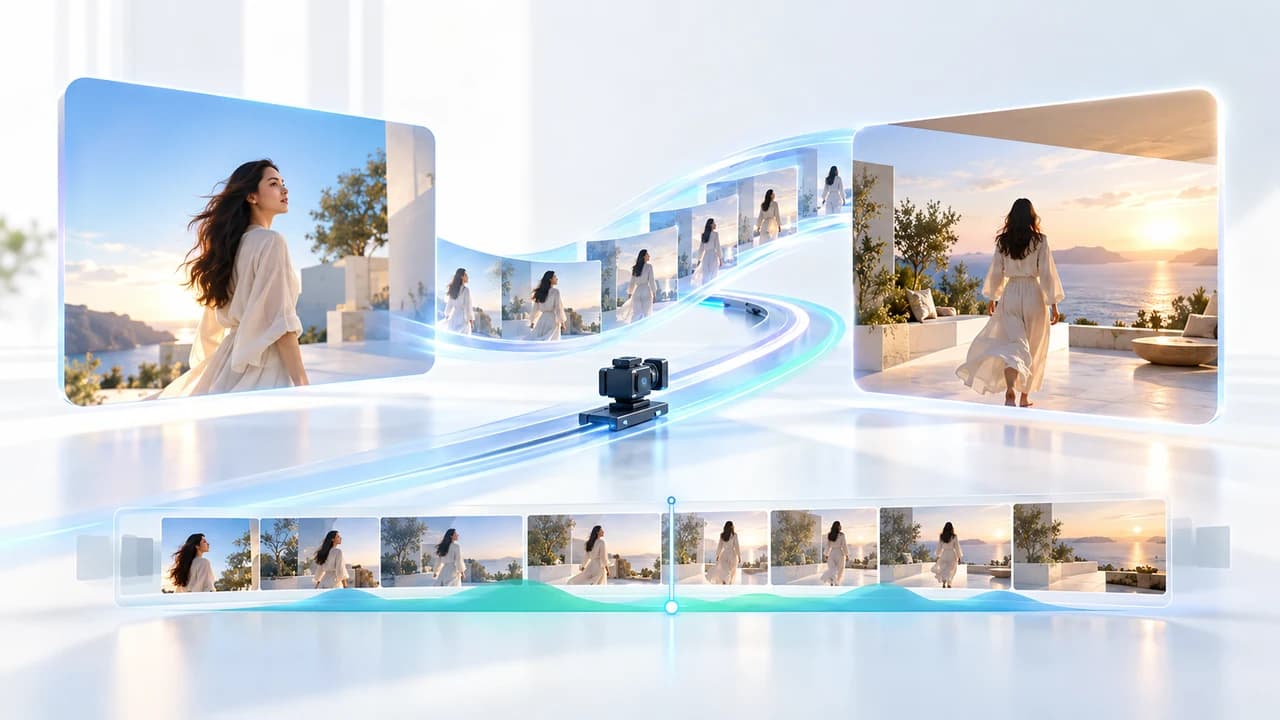
Google Flow Veo 3.1 first and last frames tutorial for an eight-second branded opener from approved stills.
What this first-and-last-frame exercise produces
Google Flow Veo 3.1 first and last frames tutorial readers will build one eight-second, 16:9 opener that moves between two permission-cleared corporate stills. The start frame is a close view of a real workshop detail; the end frame is a wider approved office view with similar lighting and composition. The objective is a single continuous pull-back that can open a short brand film—not a generic text-to-video shot and not a replacement for factual footage. Accurate logo artwork, claims, names, and titles remain editor-controlled layers.
Google's official Create videos in Flow guide documents the start-and-end-frame path, while its live model and feature matrix identifies which Veo 3.1 variants support it. Both pages are undated and were checked October 29, 2026. This workflow was reconstructed from those current documents; no generation was submitted, no quality result is claimed, and the hero image is an illustration rather than a Veo output.
This is narrower than the site's earlier general Veo prompt guide. Here, the two approved frames define the composition, the prompt describes only the motion between them, and the QA is built around whether the clip still represents the approved brand material. Google says Flow is available to users age 18+ in Canada, but product features may vary by country and account. Confirm the live model selector, credit estimate, and download choices before spending anything. For a larger hybrid campaign that combines filmed hero material with generated transitions, review AI video production in Vancouver.
Prepare two approved frames that can plausibly connect
Start with two images your organization owns or is licensed to use for this project. For this exercise, choose a 16:9 close-up of a technician adjusting a camera rig in a workshop and a 16:9 wide office frame that reveals the same warm practical lighting, wall colour, and general viewing direction. Do not use a random brand photograph as the start and an unrelated stock office as the end. Veo must invent everything between the anchors; the bigger the mismatch in subject, lens position, lighting, or geography, the more room there is for unwanted morphing.
Normalize the inputs before upload. Use the same pixel dimensions and orientation, remove temporary crop marks, and avoid baking titles or small logo text into either frame. If the end frame must contain a logo, keep the approved logo as a separate post-production asset and use a clean image for generation. Record the owner, source filename, permission scope, approval date, and any people shown. A face, product, uniform, safety practice, or office feature can become a factual brand claim even when no words appear on screen.
Make a short continuity sheet with three columns: fixed facts, allowed invention, and automatic rejection. Fixed facts include the people, camera rig, wall colour, room layout, and approved endpoint compositions. Allowed invention is limited to a continuous camera pull-back, subtle natural motion, and intermediate background detail consistent with both frames. Reject extra people, altered faces or hands, distorted equipment, fabricated signs, changed uniforms, warped architecture, or a transition that does not land cleanly on the supplied end frame.
The two source stills are not optional decoration; they are the production boundaries. If they cannot plausibly be two moments in one shot, redesign the concept or film the transition. Corporate video production remains the reliable route when the location, staff, product behaviour, or claim must be documented exactly.
Choose Veo 3.1 Frames and set the live controls
Open Google Flow, create a project, and use the standard prompt box rather than assuming the Agent has identical controls. Click the model name, choose Video, and then choose Frames. Drag the first image into + Add start frame and the second into + Add end frame. In the preferences, choose 16:9, one output for the first pass, an eight-second duration, and a Veo 3.1 variant that the account actually offers. Then add the motion prompt and select Generate. Those UI labels follow Google's live desktop help checked October 29, 2026.
Google's feature matrix currently says Veo 3.1 Lite, Fast, and Quality all support first-and-last frames in both aspect ratios at 4, 6, and 8 seconds. However, the separate Flow credit guide lists Veo 3.1 Quality as an eight-second generation at 100 credits, while Lite and Fast list 4, 6, and 8 seconds. Because the two official pages describe Quality differently, this exercise uses eight seconds and requires the interface to confirm the selectable model, duration, and displayed total. Do not promise a four- or six-second Quality option from a table alone.
At the checked rates, one Lite generation is 10 credits for non-Ultra users or 5 for Ultra; Fast is 20 or 10; Quality is 100 for all users. Costs are per generation, not per request, and a request can create multiple outputs. Google currently gives every account 50 daily Flow credits, with additional monthly credits for subscribers, but non-subscribers may be unable to generate during peak capacity. These are vendor settings, not a permanent budget. Start with one output, read the live estimate, and keep enough credits for one bounded revision.
Use this original motion prompt, then iterate one variable
The frames already describe what the shot looks like, so the prompt should direct the transition rather than rewrite both images. Paste this original prompt, then replace only details that are visible in your approved frames.
Copyable prompt Start exactly on the approved workshop close-up. The camera makes one slow, continuous pull-back through the same warm practical light and arrives exactly on the approved wide office frame. Preserve the visible technician, camera rig, clothing, hands, wall colours, furniture, perspective, and lighting continuity. Natural restrained motion only. Add no extra people, logos, signs, words, screens, products, dialogue, or camera cuts. Keep the centre calm and leave clean negative space for an approved title added later in editing. End with a stable one-second hold on the supplied final frame.
Generate one version and review the transition at normal speed, half speed, and frame by frame. If the model invents signage, remove style adjectives and repeat the no-text boundary. If the technician or equipment morphs, reduce the movement request to a simple pull-back and choose two frames with a smaller compositional gap. If the clip reaches the end image too late, ask for the move to complete by second seven and retain a final one-second hold. If the lighting pulses, describe one constant colour temperature and remove any competing lighting language. Change one variable per pass so the reason for improvement or failure remains visible.
Use a stop rule: after two generations with the same factual defect, do not keep purchasing variations. Replace the AI move with a conventional edit, a designed match cut, a 2.5D camera move, or a short filmed transition. First-and-last-frame control constrains the endpoints; it does not guarantee accurate intermediate people, products, text, or architecture. The prompt is a production instruction, not evidence that the output passed QA.
Download the candidate and finish the opener in an editor
Once one candidate passes the frame review, hover over the asset, choose More, then Download, and select the video file type offered by the account. Google's official project and asset guide, undated and checked October 29, 2026, documents that path and also allows a 270p GIF. It does not promise one universal video codec or resolution in that section, so inspect the downloaded file rather than naming an unsupported export specification. Keep the original download unchanged and make the finishing version in your normal editor.
Add the real logo, company name, title, legal line, and call to action as accurate graphic layers. Do not depend on generated lettering. If the final image already contains small factual text, compare it with the approved still and replace it with clean artwork if any letter shifts. Choose licensed music, build sound design separately, and confirm whether the generated clip returned audio. Google Flow project settings include a Return silent videos option, so audio behaviour can depend on the project. A corporate opener usually benefits from controlled music and sound design rather than an unapproved generated soundtrack.
Export a review proof before making platform versions. Check the start frame, the end-frame landing, faces, hands, equipment geometry, architecture, colour, title safe area, duration, audio peaks, and the absence of invented claims. Watch once on a normal desktop display and once on a phone. Save the two inputs, prompt, model name, settings, generation date, downloaded candidate, edit project, music licence, and approval record together. Google says Flow-generated clips include invisible SynthID; do not attempt to remove or defeat provenance signals.
For help turning an approved concept into a finished bilingual brand film, contact Steven Video Production with the two frames, rights information, platform, deadline, and elements that must remain exact.
Access limits, documented facts, and the final QA decision
As of the October 29, 2026 check, Google's availability page includes Canada, Cantonese, and Simplified and Traditional Chinese, and says Flow is for users age 18+. Google recommends English prompts for best results and warns that features can vary by country. The same page prohibits generating videos of prominent people and editing uploaded videos of identifiable minors. This exercise uses ordinary, permission-cleared corporate material and does not require a public figure, minor, video-to-video edit, avatar, or voice reference.
The supported-feature matrix is equally important: Veo 3.1 Lite, Fast, and Quality support first-and-last-frame generation, but Veo 3.1 does not support video-to-video editing. Do not upload an existing brand film and describe that as the same workflow. Start/end frames generate a new clip between still anchors. If you need to alter uploaded footage, that is a different feature and model path with different regional restrictions and costs.
Before approval, compare frame zero and the final frame directly with their source images. Then inspect every major movement for identity drift, object morphing, added text, implausible room changes, and visual discontinuity. Verify that the opener does not suggest a real employee performed an action they did not perform, that equipment use is safe and credible, and that the final copy has been approved by the brand owner. Confirm the downloaded dimensions and codec, the edit timeline settings, audio rights, and the intended display. Record any synthetic portion in the project notes.
Approve only if the generated middle is both visually usable and factually safe. Otherwise use the approved stills in a conventional motion-graphics opener. A simple, honest animation is better than a smooth AI transition that changes the brand, person, product, or location.
Frequently Asked Questions
Does Google Flow support first and last frames with Veo 3.1?
Yes. Google's current feature matrix lists first-and-last-frame generation for Veo 3.1 Lite, Fast, and Quality in both aspect ratios. Confirm the live selector because availability can vary.
How long can a Veo 3.1 first-and-last-frame clip be?
The feature matrix lists 4, 6, and 8 seconds, but the credit guide lists Quality as an 8-second generation. This tutorial uses eight seconds and requires the interface to confirm the option.
How many Google Flow credits does this tutorial use?
At the checked rates, one eight-second Lite generation costs 10 credits for non-Ultra users or 5 for Ultra; Fast costs 20 or 10; Quality costs 100. Live rates can change.
Can I use Google Flow in Canada?
Google's current availability page includes Canada and says Flow is available to users age 18+. Features can still vary by country and account.
Can Veo 3.1 keep logos and brand text exact?
Do not assume it will. Use clean frames, reject altered text or geometry, and add the approved logo, claims, names, and CTA as precise layers in an editor.
Is this the same as editing an existing video in Veo 3.1?
No. First-and-last frames generate a new clip between two still images. Google's current matrix says Veo 3.1 does not support video-to-video editing.
Ready to start your project?
Get in touch for a free consultation. I typically respond within a few hours.