
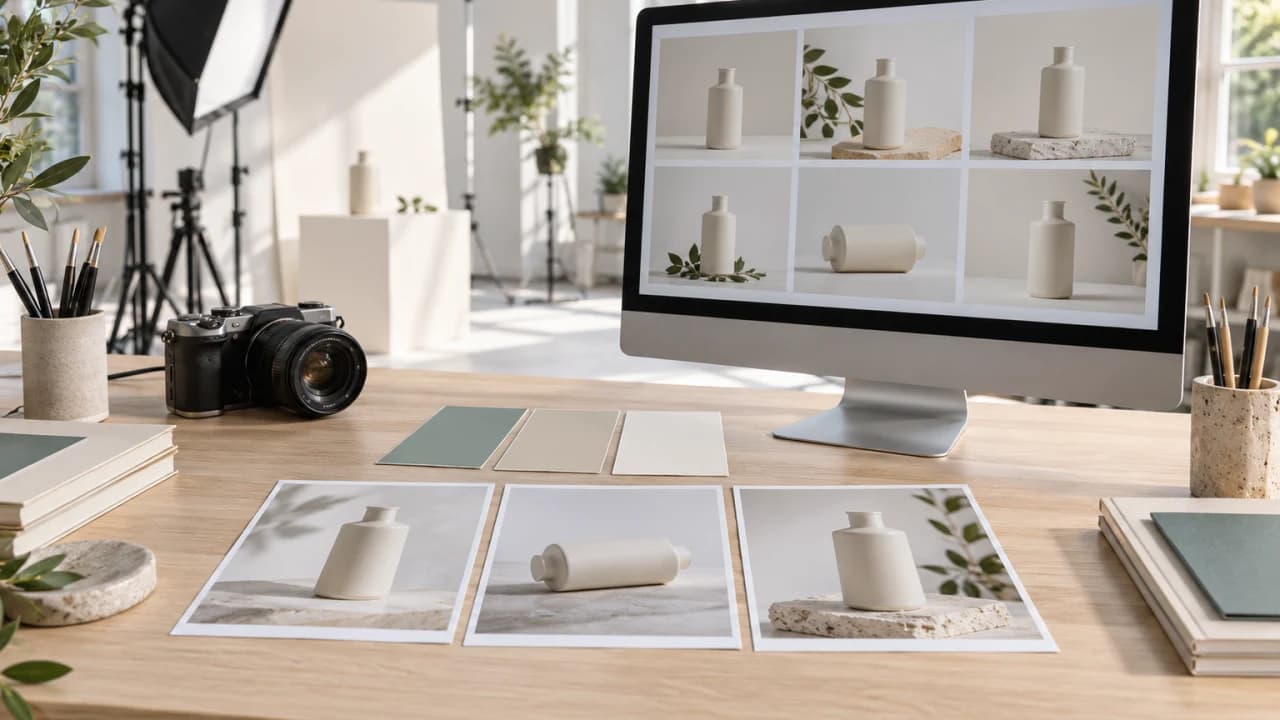
AI product photo to video starts with one useful image. Compare ChatGPT and Gemini for preparing a product visual, animate a short shot with Seedance on Higgsfield, then assemble a simple social ad. Includes copyable prompts, a 15-second edit plan and fixes for common mistakes.
One phone photo, one moving shot, one short ad
AI product photo to video can be a manageable first project for a shop owner, a small marketing team or a personal creator. Start with one item and one message: show a ceramic bottle or a gift box, then tell the viewer where to see it or ask about it. You do not need to learn several professional applications before making the first draft.
Our exercise is deliberately small: prepare two possible still images in ChatGPT or Gemini, choose one, animate a short shot using Seedance inside Higgsfield, and assemble it with your original photograph and an end card. We will use a fictional ceramic bottle. A restaurant can substitute an actual dish photo; a service business can use its genuine location rather than inventing evidence of completed work.
Why this topic now? The October 12 Rourke brand-image tutorial highlighted campaign consistency. It is a sponsored Magnific demonstration, not an independent ranking. Here we turn that problem into a familiar image-to-video exercise. This is a comparison of access and workflow, not a measured picture-quality contest. For help finishing a campaign, our Vancouver AI video service can handle the production stages below.
ChatGPT or Gemini: start with the account you already use
Choose by the editing task and available account, then compare the actual results. ChatGPT offers a route for developing a brief and revising an uploaded image in a conversation. Gemini offers image creation and photo editing with visual references. Neither route requires an Adobe subscription. Generation access and limits still depend on your account.
ChatGPT route
- Open a ChatGPT chat with image generation available and attach your real product photo.
- Explain what the attachment shows, then ask for the new background and framing using the prompt below.
- Review the result, request one specific change in the same chat, and save your selected image. OpenAI's image guide explains reference-image roles and follow-up edits.
Gemini route
- Open Gemini and choose Create images from Tools.
- Upload the same photo and use the same prompt.
- Request a targeted change and save the result. Google's current image page describes the Nano Banana family and plan-dependent options, including Nano Banana 2.1 for Google AI plans. Use the model actually offered to your account.
Compare the same four things: product shape, colour, usable space for copy and what changed between revisions. If both tools alter an essential product detail, keep the original photo. Do not compare an edited real photo in one tool with an invented object in the other.
You may hear the name GPT Image 2.5. It appears in OpenAI's current API model list, but that does not promise every ChatGPT user has a menu with that label. This tutorial uses the consumer image feature, not an API.
Prepare the photo and copy a prompt that says what must stay
Take a sharp photo with the whole product visible, a plain background and soft light from a window. Avoid filters that change its colour. Add a genuine detail photo if texture matters, and keep the originals. Save the real logo for the final edit rather than asking an image model to redraw it.
For this exercise, request a vertical 9:16 image for a phone-viewed ad. Leave room around the bottle and above it for a short headline. Choose a landscape image instead for a website banner; make that decision before generating.
Copyable image prompt Edit the attached product photograph for a vertical 9:16 social-media visual. Keep the bottle's silhouette, proportions, cap, colour and visible label unchanged. Replace only the background with a simple pale stone surface and soft window light. Keep the entire bottle visible with generous space above it for text added later. Do not add words, logos, hands or extra products. Use the second image only as a lighting reference, if one is attached.
Make one simple-background version and one warmer-background version. The prompt is a request, not a preservation guarantee. Compare each with the original, especially around the cap, label and edges.
Targeted revision prompt Keep the selected image's product and framing unchanged. Remove the decorative plant from the background and make that area plain. Do not redesign the bottle or add text.
If the product already changed shape, return to the original instead of continuing to revise an inaccurate image. When actual packaging or material is the selling point, a focused Vancouver product or corporate shoot may get you the right reference more directly.
Animate the selected image: Higgsfield is the platform, Seedance the model
Higgsfield is the site where you generate; Seedance is a video-model family selected inside it. You do not need to compare them as two competing tools. The official Seedance help page currently lists Seedance 2.5 for Pro and Plus plans and above, excluding Starter and Basic. Check your account and the displayed credit cost. Do not buy a plan just to follow this exercise.
- Open Higgsfield's video workspace and sign in.
- In Video, choose Seedance 2.5 if included in your account. If using another Seedance version, check its own available settings.
- Click Add references and add your approved still as an image. For this example, choose 9:16 and a short test, such as 5 seconds at 720p where offered.
- Enter the motion prompt, review the cost shown, then generate one test.
- Watch the whole clip before saving. Keep the still and prompt with the chosen file.
Copyable video prompt One continuous product shot, no cuts. The ceramic bottle remains stationary on the pale stone surface. A very slow camera push-in, soft steady window light, clean background. Keep the bottle fully in frame with space above it for a title added in the edit. No hands, extra objects, spinning product or added text.
One subject and one movement make errors easier to diagnose. Avoid adding a person, a product rotation and a scene change to the first attempt. If generated sound is available, listen before keeping it; a separate music bed can be added during editing. Spoken dialogue is unnecessary for this first draft.
Build a 15-second example without generating the entire ad
Use the phone or desktop editor you already know. Import the original product photo, the approved moving shot, your logo and final contact text. The following timing is a creative recipe, not a platform limit or a promise of advertising performance.
- Seconds 0–3: show the real photo with one opening line, such as A small gift for a thoughtful moment.
- Seconds 3–8: use the five-second moving shot without several competing messages.
- Seconds 8–12: show a genuine detail photo and one accurate product fact.
- Seconds 12–15: add an end card with the real business name and one action, such as See the collection or Ask about availability.
Add text in the editor to control spelling and contact details. Duplicate the edit for English and Chinese, replace the copy and adjust line breaks and reading time. Keep the same visual direction. If a headline crowds the product, shorten it or use a separate card rather than regenerate everything.
Watch the export on a phone: can you identify the product, read the headline and understand the next step? Does the moving shot preserve the item? Identify illustrative concepts where viewers see them; do not pass an invented room or result off as actual work.
For a finished piece, Vancouver video production can include product photography, shot planning, generation tests, editing, sound and bilingual versions. Send original images, a selected test and the intended channel through our contact page. We can discuss which stages you handle and which are useful to hand over.
Fix a specific problem and know when a still image is enough
If the bottle changes shape during motion, try a static camera, less movement or the original photo with a gentle editor-controlled move. Do not keep buying variations of a shot that fails at the detail your customer needs to see.
Motion correction prompt Use a locked-off camera with no zoom, rotation or scene change. Keep the product stationary and fully visible. No objects enter or leave the frame. Preserve the simple background; do not add lettering.
If the product is too small, fix the still's framing before animation. Remove one distracting background element at a time. Fix English or Chinese spelling in the editor's text layer. When two shots clash, align their palette and light direction or use a deliberate cut rather than unrelated effects.
This route suits a product mood shot, concept teaser or personal creative experiment. Use real filming for a genuine demonstration, testimonial, construction result or event. A clear still may already do the job for a simple offer; add movement when it helps understanding.
Sources and testing, October 12, 2026: official consumer-route descriptions, model distinctions and listed access conditions were checked, and the public Higgsfield controls were inspected, including a 5-second duration and 720p resolution option. Submitting a generation requires authentication. We did not run a same-product output test across Gemini, ChatGPT and Seedance or measure their quality. These original prompts and timing are a practice exercise, not a completed client case. The cover is an AI-generated fictional workspace, not a comparison result.
Frequently Asked Questions
Should I start with ChatGPT or Gemini for product images?
Start with the account that gives you image editing. For a comparison, use the same real photo and task, then judge shape, colour, framing and revisions. This guide does not declare a measured quality winner.
Do I need an Adobe subscription for this tutorial?
No. The image routes use ChatGPT or Gemini and the moving-shot route uses Higgsfield. Each has its own account limits and paid options; check them before starting.
Are Higgsfield and Seedance competing tools?
Here Higgsfield is the platform and Seedance the video model selected within it. Different model versions have different access and settings.
Can I use Seedance 2.5 on every Higgsfield plan?
The official help page checked on October 12, 2026 lists Pro and Plus plans and above, excluding Starter and Basic. Check the current model picker; API availability is not a consumer-plan entitlement.
What if AI changes the product or label?
Compare with the original, simplify the scene and motion, and keep exact text and logos in the editor. Use an actual photo or film the product when an essential detail will not hold.
Can Steven help finish an AI-generated draft?
We can discuss reference photography, shot planning, generation, compositing, editing, sound and bilingual versions. Send original assets, selected drafts and intended channels for a project-specific scope.
Ready to start your project?
Get in touch for a free consultation. I typically respond within a few hours.